> ## Documentation Index
> Fetch the complete documentation index at: https://docs.fermata.run/llms.txt
> Use this file to discover all available pages before exploring further.
# Install and first run
> Install Fermata via Homebrew or a signed DMG, set up the two command-line tools it expects, and see what the first launch asks you.
Fermata runs on macOS 15 Sequoia or later, on Apple Silicon (M1 or newer). macOS 26 Tahoe is recommended: it gives you the full Canvas and the Liquid Glass interface.
On macOS 15 the app runs a fallback Canvas. It draws the same nodes, edges, filters, and selection, and you still drag, pan, and zoom. What it does not have is the minimap, the animated zoom-to-fit, and snap-to-grid with undo and multi-selection. The chrome is plainer too, because Liquid Glass falls back to a plain material. Everything outside the Canvas behaves the same on both.
## Option A: Homebrew
The fastest path. Fermata is distributed as a Homebrew cask on a self-hosted tap.
```bash theme={null}
brew tap kelios-io/fermata
brew install --cask fermata
```
The cask declares `auto_updates true`, so Homebrew steps out of the way after install. Routine updates arrive through Sparkle inside the app; you only need `brew upgrade --cask fermata` for major version bumps.
## Option B: Direct DMG download
Grab the DMG from [fermata.run](https://fermata.run). The build is signed with a Developer ID certificate and notarized by Apple, so Gatekeeper opens it without a fight. Mount the DMG, drag **Fermata** to **Applications**, eject. Done.
Auto-update is on by default either way. New releases land via Sparkle and prompt you the next time you launch.
## Before your first piece
Fermata hosts the Claude Code CLI and opens pull requests through the GitHub CLI. Neither is bundled, so set both up first.
Fermata drives Claude Code; it does not replace it. Anthropic's [Claude Code docs](https://docs.claude.com/en/docs/claude-code/overview) walk you through the install and the login. If `claude` runs in your terminal and answers a prompt, Fermata finds it. It checks a path you configured first, then your `PATH`, then the usual install locations.
Fermata runs on your own Claude setup and your own billing. To run the engine through Amazon Bedrock or Google Vertex instead of Anthropic directly, see [models and providers](/configuration/models).
`gh` does more than open pull requests: it also backs **Clone from GitHub…** and, on the Edge channel, the one-click way to [connect a GitHub Stream Source](/loop/from-an-issue#connect-a-tracker). Install it and authenticate before your first piece.
```bash theme={null}
brew install gh
gh auth login
```
On a remote that is not GitHub, skip this step and lose some buttons: **Create PR** needs `gh`, cloning a repository needs `gh` logged in, and connecting a GitHub Stream Source falls back to a pasted access token without it. Everything else in a run, including **Merge Back**, which merges with plain git, works either way.
## First launch
Open Fermata from Applications. The first thing you see is a one-time "Privacy" notice with two switches, and nothing is transmitted until you answer it. See [privacy and data](/reference/privacy) for what each switch sends.
Past that, you land on the Welcome view, with two ways to get a project open: **Open Project** for a repository already on disk, and **Clone from GitHub…** for one that is not. The same **Clone from GitHub…** button sits in the project picker and in the File menu, so you never have to come back to Welcome to reach it.
Picking **Open Project** asks for any git repository on disk. Fermata reads it, sets up its workspace, and drops you in on [Home](/surfaces/home).
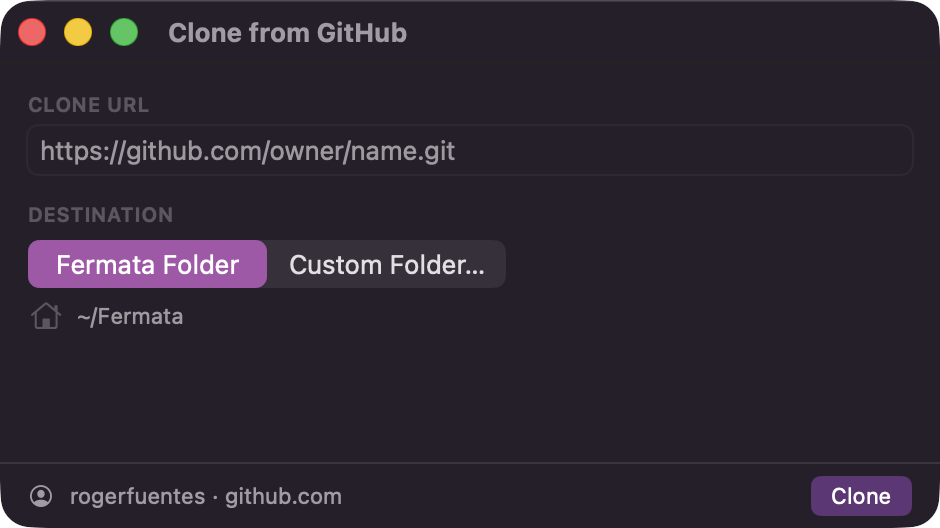
**Clone from GitHub…** opens a window that checks for `gh` first: without it, or without a login, the window tells you to install `gh` or run `gh auth login` and stops there. Once `gh` is ready, fill in a **Clone URL** (a plain text field, not a repository browser) and pick a **Destination**: "Fermata Folder" clones into `~/Fermata`, "Custom Folder…" clones into a folder you choose. If the URL already has a clone at that destination, the window offers **Open as Project** instead of cloning it again. A successful clone drops you in on Home the same way opening a folder does.
## Settings
Click the gear icon in the bottom-left corner of the sidebar. Settings hold the defaults for new work: permission profile, model, effort, worktree conventions, and the gates. Anything you set here applies going forward, and you can still override most of it per project and per piece. See [where defaults live](/control/defaults) for which setting wins.
## Keep the Mac awake for unattended runs
Agents run on your machine, so a sleeping Mac is a stopped factory. Turn on **Keep Mac Awake** in General settings before you leave a hands-off run going. The options are in the [settings reference](/configuration/settings).
## Next
Start [your first piece](/start/first-piece), or spin up a [standalone session](/surfaces/canvas-and-sessions) on the Canvas for a quick one-off. Arriving from the terminal? Read [Fermata and Claude Code](/start/fermata-and-claude-code) first.
 ## Settings
Click the gear icon in the bottom-left corner of the sidebar. Settings hold the defaults for new work: permission profile, model, effort, worktree conventions, and the gates. Anything you set here applies going forward, and you can still override most of it per project and per piece. See [where defaults live](/control/defaults) for which setting wins.
## Keep the Mac awake for unattended runs
Agents run on your machine, so a sleeping Mac is a stopped factory. Turn on **Keep Mac Awake** in General settings before you leave a hands-off run going. The options are in the [settings reference](/configuration/settings).
## Next
Start [your first piece](/start/first-piece), or spin up a [standalone session](/surfaces/canvas-and-sessions) on the Canvas for a quick one-off. Arriving from the terminal? Read [Fermata and Claude Code](/start/fermata-and-claude-code) first.
## Settings
Click the gear icon in the bottom-left corner of the sidebar. Settings hold the defaults for new work: permission profile, model, effort, worktree conventions, and the gates. Anything you set here applies going forward, and you can still override most of it per project and per piece. See [where defaults live](/control/defaults) for which setting wins.
## Keep the Mac awake for unattended runs
Agents run on your machine, so a sleeping Mac is a stopped factory. Turn on **Keep Mac Awake** in General settings before you leave a hands-off run going. The options are in the [settings reference](/configuration/settings).
## Next
Start [your first piece](/start/first-piece), or spin up a [standalone session](/surfaces/canvas-and-sessions) on the Canvas for a quick one-off. Arriving from the terminal? Read [Fermata and Claude Code](/start/fermata-and-claude-code) first.