> ## Documentation Index
> Fetch the complete documentation index at: https://docs.fermata.run/llms.txt
> Use this file to discover all available pages before exploring further.
# Canvas and standalone sessions
> The Canvas is the spatial view of running agents, and the place you start a one-off session. Every session is a node; a piece is a card you can expand.
The **Canvas** is the spatial view of running agents. Every session is a node you can drag, colored by what it is doing, and every piece is a card you can expand to see its agents inside. It is where you read the work as it happens, and where you start a one-off standalone session. Work is driven from [Home](/surfaces/home) and [the Loop board](/loop/board); the Canvas is where you watch it.
An empty Canvas says what it is for: "⌘N to start a session", "⌘I to start a piece".
## What sits on it
**Standalone session nodes.** One card per session you started yourself, carrying its name, project, permission profile, status, and model.
**Piece container cards.** A piece appears here too, as one card with an agent count in its header and a chevron that expands it in place. Expanded, the card grows to hold its agents grouped by wave, along with sections for the code review, the piece's sessions, and any pull request conflicts. Collapse it again and it goes back to one line.
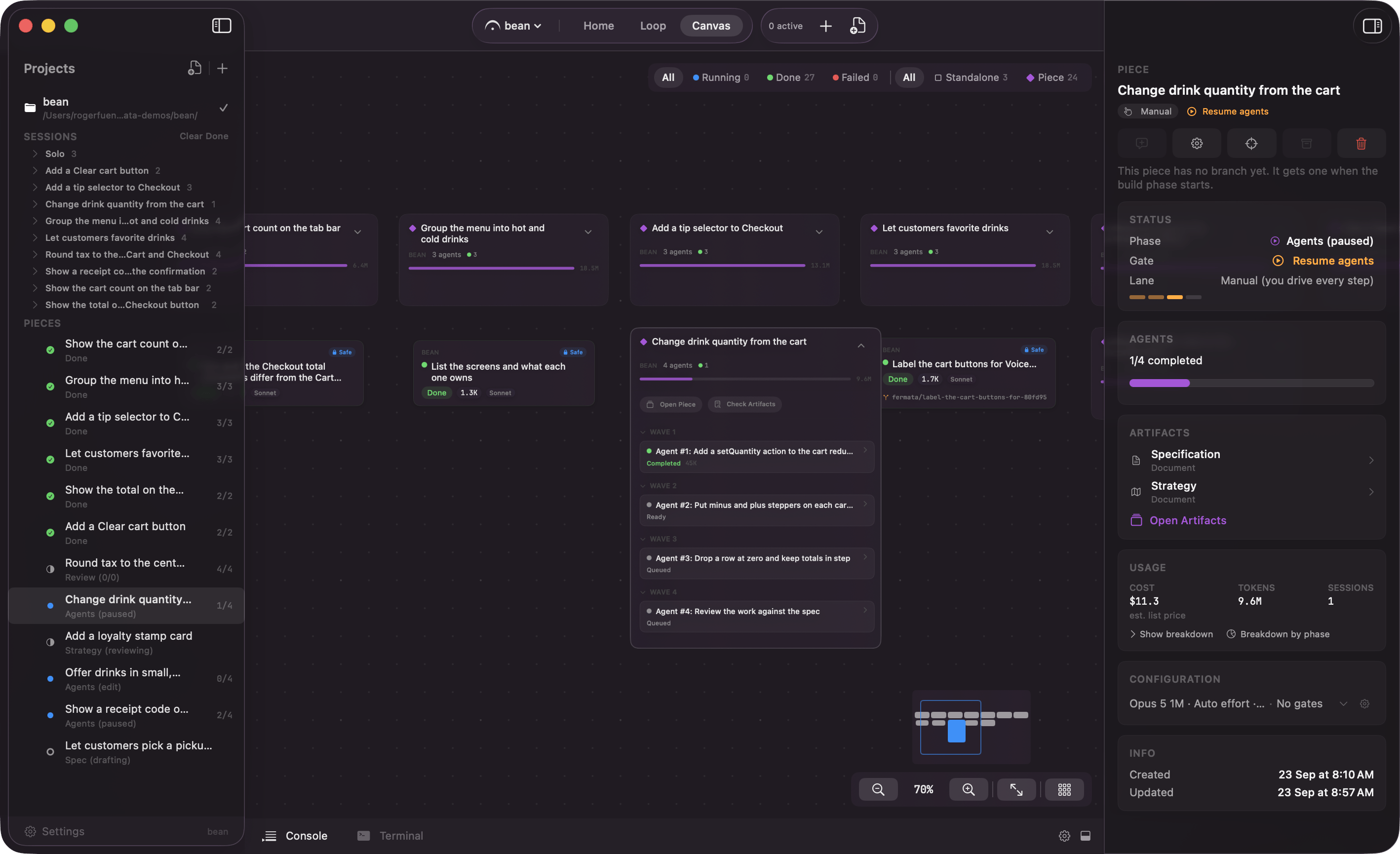 Click any node or sub-card to pin that conversation into the inspector on the right.
From a piece's inspector you can also press **Start session** to open a session against that piece rather than interrupting its run. The composer opens pinned to the piece, its header naming the piece and the branch the work will land on, and the session reuses that worktree instead of carving a new one.
## Node anatomy
Click any node or sub-card to pin that conversation into the inspector on the right.
From a piece's inspector you can also press **Start session** to open a session against that piece rather than interrupting its run. The composer opens pinned to the piece, its header naming the piece and the branch the work will land on, and the session reuses that worktree instead of carving a new one.
## Node anatomy
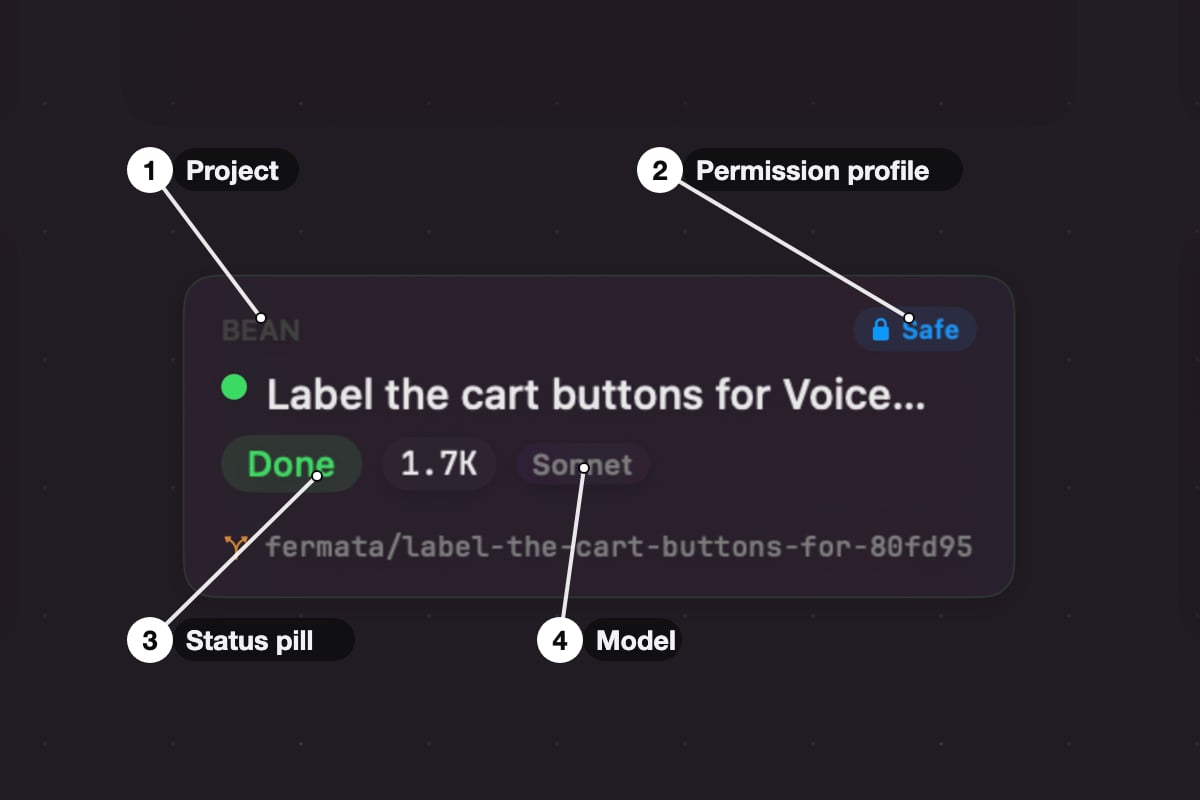 * **Status color.** Gray while it spawns. Blue while it runs. Amber when it is waiting on an approval, and amber again when it is idle between turns. Green when it finished cleanly, red when it failed. Glance at the Canvas and you know where every session stands.
* **Branch name.** A session that ran in its own worktree shows its branch. Standalone sessions follow the `fermata/{session}` pattern by default, so they are easy to spot in `git branch`.
* **Token counter.** The node ticks up token counts as the agent works.
* **Stop.** Right-click the session in the sidebar and pick **Stop**. The agent halts mid-stream. If it wrote anything the worktree stays put so you can inspect it. A session that stopped with a clean tree, still at the commit it started from and with no commits of its own, has its worktree and branch cleaned up. A piece's worktree follows a different rule, on [review and the pull request](/piece/review-and-pull-request).
## Start a standalone session
A [piece](/start/first-piece) is the right shape for a feature. For a one-off, fixing a bug, spiking an API, asking the codebase a question, a piece is more ceremony than the work deserves. That is what a standalone session is for.
Press **⌘N**, or click the **+** button in the toolbar (its tooltip reads "New Session (⌘N)"). The overlay opens over the Canvas.
* **Status color.** Gray while it spawns. Blue while it runs. Amber when it is waiting on an approval, and amber again when it is idle between turns. Green when it finished cleanly, red when it failed. Glance at the Canvas and you know where every session stands.
* **Branch name.** A session that ran in its own worktree shows its branch. Standalone sessions follow the `fermata/{session}` pattern by default, so they are easy to spot in `git branch`.
* **Token counter.** The node ticks up token counts as the agent works.
* **Stop.** Right-click the session in the sidebar and pick **Stop**. The agent halts mid-stream. If it wrote anything the worktree stays put so you can inspect it. A session that stopped with a clean tree, still at the commit it started from and with no commits of its own, has its worktree and branch cleaned up. A piece's worktree follows a different rule, on [review and the pull request](/piece/review-and-pull-request).
## Start a standalone session
A [piece](/start/first-piece) is the right shape for a feature. For a one-off, fixing a bug, spiking an API, asking the codebase a question, a piece is more ceremony than the work deserves. That is what a standalone session is for.
Press **⌘N**, or click the **+** button in the toolbar (its tooltip reads "New Session (⌘N)"). The overlay opens over the Canvas.
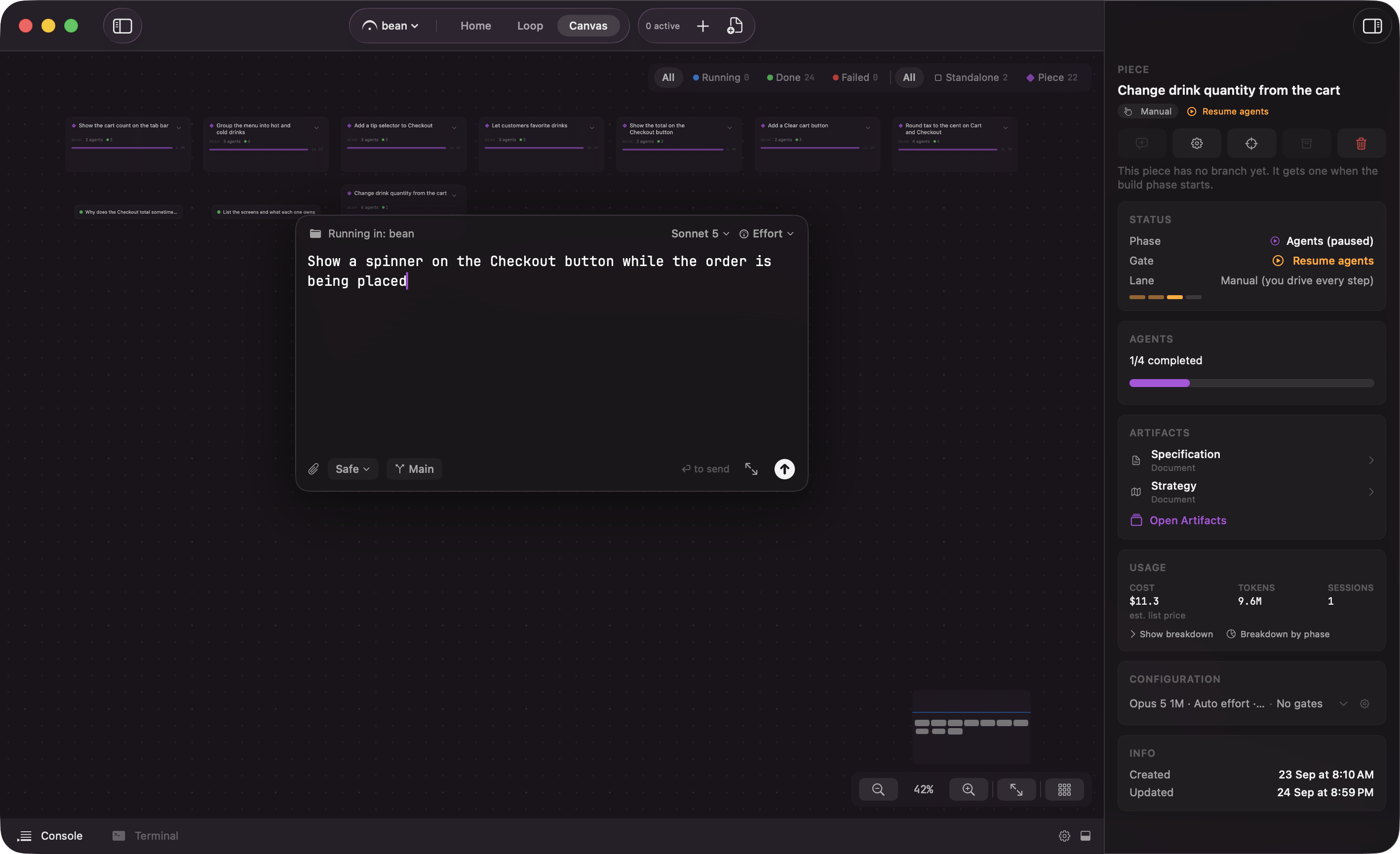 Describe what you want in plain English, and be specific. "Find where the login form validates emails and add a check for `+` aliases" beats "fix email validation". Long prompts are fine; pasting in a bug report, a failing test, or a design note is often the fastest way to a useful result.
Type `/` instead and the slash command palette opens with the commands and skills from your project, your user directory, and any plugins enabled here.
A standalone session starts on the **Safe** profile, which reads, searches, and lists files on its own and asks before anything else. That is the right setting while you learn what an agent does with your repo. Loosening it, and what the approval card offers when a call is not covered, are on [permission profiles and approvals](/control/permissions-and-approvals).
The branch chip toggles between **Worktree** and **Main**. On **Worktree**, Fermata carves out a git worktree on a fresh branch as the session spawns, so nothing touches your checkout. On **Main**, the agent edits your working copy directly. Standalone sessions start on Main unless you change the default in Settings or per project.
Sonnet is the default and the right call for most work: fast, and smart enough for the bulk of coding work. Reach for Opus when the job is genuinely hard, like a tricky refactor or an architecture decision, anything where you would rather wait longer than run the session twice. **Opus 5 1M** is available when a session needs the extended 1M-token context window. **Fable 5** is the strongest model and the most expensive; use it where a wrong call is costly. See [models and providers](/configuration/models).
The overlay closes and the session opens right away, following **Open Sessions In** in Settings → Sessions: "Main Window" centers it in place, "New Window" opens it in a window of its own. Either way it lands in front of you rather than as a node you have to go find; on the Canvas its card appears near the rest of your work instead of off in empty space.
## Work in the session
Opening a session gives you the full conversation, not a read-only trace. Send follow-ups, attach files or screenshots, interrupt and redirect, run slash commands. It behaves like a CLI session because that is what it is. A session that started as one question can keep going as long as you want it to.
Describe what you want in plain English, and be specific. "Find where the login form validates emails and add a check for `+` aliases" beats "fix email validation". Long prompts are fine; pasting in a bug report, a failing test, or a design note is often the fastest way to a useful result.
Type `/` instead and the slash command palette opens with the commands and skills from your project, your user directory, and any plugins enabled here.
A standalone session starts on the **Safe** profile, which reads, searches, and lists files on its own and asks before anything else. That is the right setting while you learn what an agent does with your repo. Loosening it, and what the approval card offers when a call is not covered, are on [permission profiles and approvals](/control/permissions-and-approvals).
The branch chip toggles between **Worktree** and **Main**. On **Worktree**, Fermata carves out a git worktree on a fresh branch as the session spawns, so nothing touches your checkout. On **Main**, the agent edits your working copy directly. Standalone sessions start on Main unless you change the default in Settings or per project.
Sonnet is the default and the right call for most work: fast, and smart enough for the bulk of coding work. Reach for Opus when the job is genuinely hard, like a tricky refactor or an architecture decision, anything where you would rather wait longer than run the session twice. **Opus 5 1M** is available when a session needs the extended 1M-token context window. **Fable 5** is the strongest model and the most expensive; use it where a wrong call is costly. See [models and providers](/configuration/models).
The overlay closes and the session opens right away, following **Open Sessions In** in Settings → Sessions: "Main Window" centers it in place, "New Window" opens it in a window of its own. Either way it lands in front of you rather than as a node you have to go find; on the Canvas its card appears near the rest of your work instead of off in empty space.
## Work in the session
Opening a session gives you the full conversation, not a read-only trace. Send follow-ups, attach files or screenshots, interrupt and redirect, run slash commands. It behaves like a CLI session because that is what it is. A session that started as one question can keep going as long as you want it to.
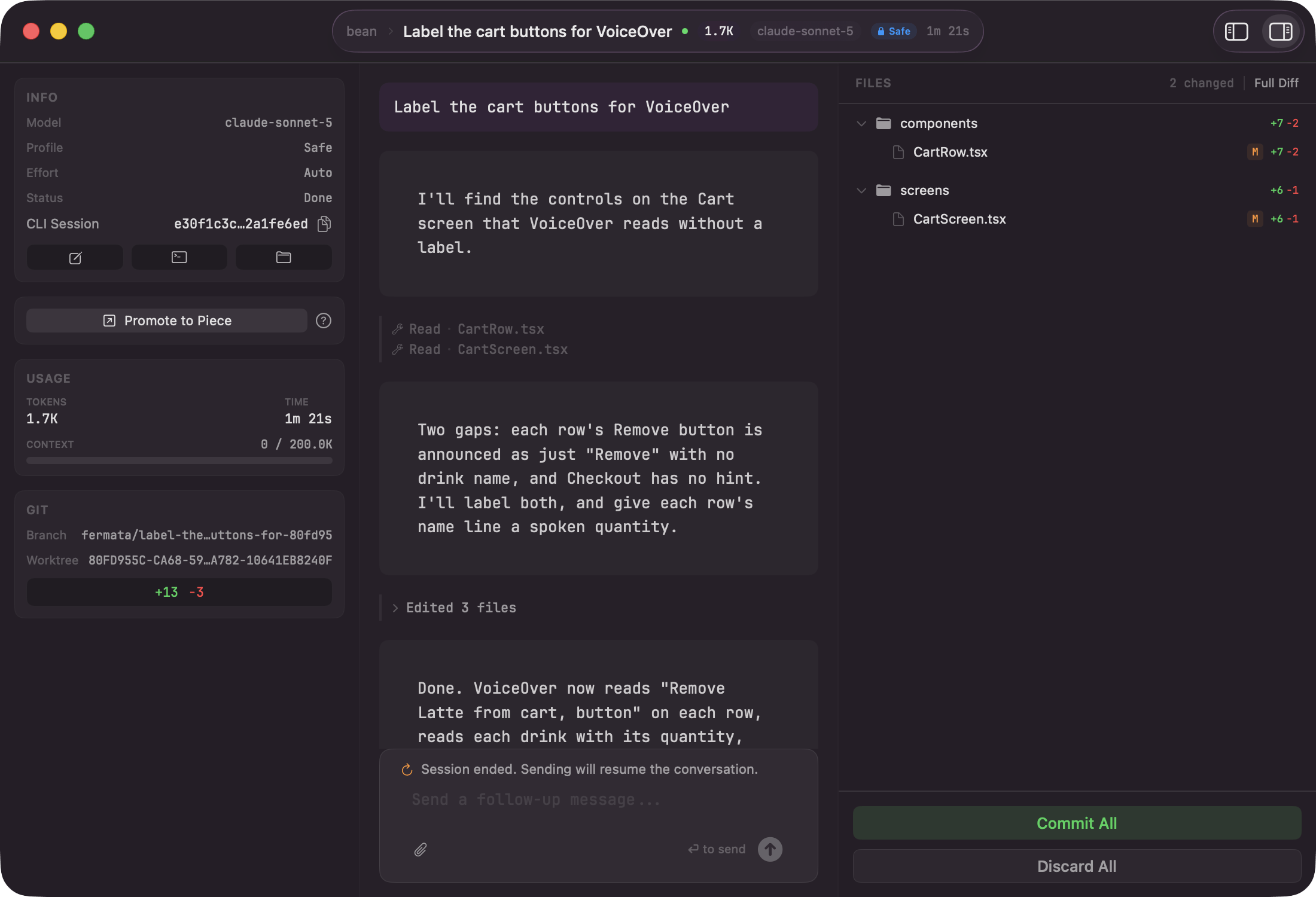 Selecting a session in Main Window mode centers it, with the inspector on the right. Its header carries a back chevron reading "Back to \": it restores whichever screen and phase you opened the session from, falling back to the Canvas if that screen is gone. Its "Info" card names the piece, the branch, the worktree path, the CLI session, the message count, and when the session was created and completed. Under that sit a live feed of the tool calls, the approval card when one is waiting, and a "FILES" panel with a count and a **Full Diff** button. A session that finishes with an active worktree gets its commit and discard actions in the worktree card below.
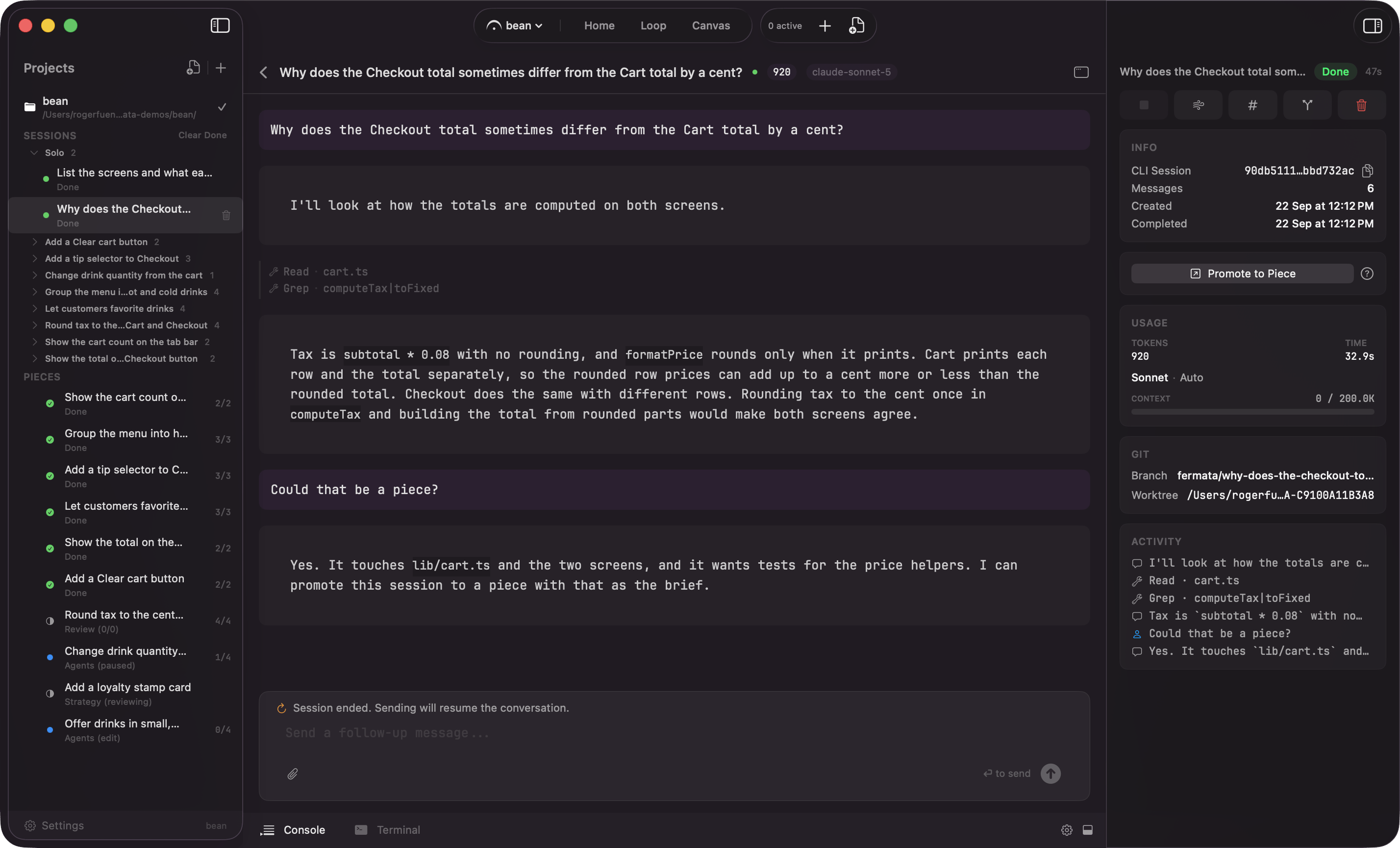 That open-ended shape is why work often starts here. You rarely know the shape of a feature before you have poked at the code, so the honest first move is a session: ask what is going on, read some files, try something small.
## Turn a session into a piece
When that exploration turns out to be real work, you do not have to start over. **Promote to Piece** shows up in three places: the separate session window's sidebar, the inspector of a session centered in the main window, and the node's right-click context menu on the Canvas. All three read the same eligibility, so they never disagree about whether a session is ready to promote.
That open-ended shape is why work often starts here. You rarely know the shape of a feature before you have poked at the code, so the honest first move is a session: ask what is going on, read some files, try something small.
## Turn a session into a piece
When that exploration turns out to be real work, you do not have to start over. **Promote to Piece** shows up in three places: the separate session window's sidebar, the inspector of a session centered in the main window, and the node's right-click context menu on the Canvas. All three read the same eligibility, so they never disagree about whether a session is ready to promote.
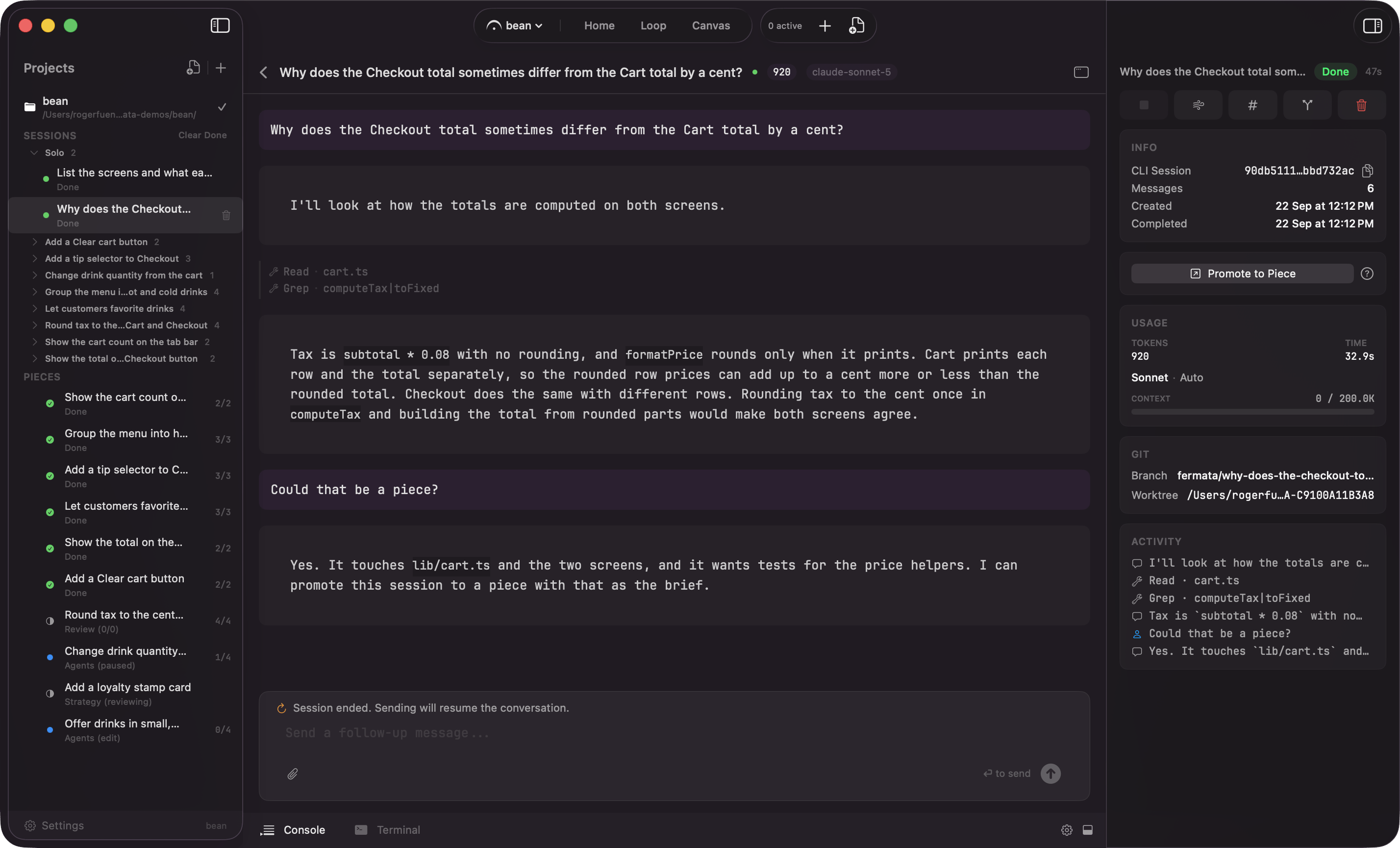 The sidebar and inspector cards sit next to a **?** button. Clicking it opens a popover: "Creates a new piece and drafts its spec from this session's transcript. You land on the Spec phase to review and edit before anything runs. This session and its worktree are left untouched; the piece starts on a fresh branch."
The canvas node's context menu offers the same action as a plain menu item, since a context menu cannot host a popover or a hint.
The control still shows on an empty session, disabled, with a reason underneath: "Start a conversation first. There's nothing to draft a spec from yet." It is disabled the same way if the session's project cannot be resolved. It never appears at all for a session that already belongs to a piece, or for Fermata's own interview and code-review sessions.
Promoting creates a piece in the same project and seeds the [spec interview](/piece/interview-and-spec) with the session's transcript, so the research you just did becomes the starting point for the spec instead of being retyped. Because the groundwork is already captured, the interview runs at "Quick" depth: it asks only what is genuinely still blocking, then drafts. The piece names itself from the drafted spec's first heading, and it lands in the "Manual" lane, so nothing runs off on its own. You read the drafted spec, edit it, and mark it ready yourself.
## When the agent asks you something
A question from the agent renders as its own card in the transcript, not a plain message. If it offers options, pick one and the answer sends immediately for a single-choice question; a multi-select question waits for you to click **Confirm Selection** once you have checked the ones you want. Either kind also takes typed text in "Type your answer...", and typed text rides along with whatever you picked rather than replacing it.
A batch of questions from the same turn renders as one group card, each question with its own options and its own text field. Nothing sends until you click **Submit All Answers**, and that button stays disabled until every question in the batch has an answer.
You do not have to use the card at all. Typing an answer into the main composer below the transcript and pressing send resolves the same waiting question, and it is the one path that carries an attachment: attach a file or a screenshot there before you send, and it rides along with the answer.
## What happens next
On Safe, your agent will probably run for a few seconds and then stop on an approval. It wants to write a file, run a shell command, or reach the network, and Safe makes it ask. The node turns amber, an approval card appears in the inspector, and the session waits for your answer. See [permission profiles and approvals](/control/permissions-and-approvals).
When the work is bigger than a one-off, a real feature or a multi-file refactor, reach for [a piece](/start/first-piece) instead.
The sidebar and inspector cards sit next to a **?** button. Clicking it opens a popover: "Creates a new piece and drafts its spec from this session's transcript. You land on the Spec phase to review and edit before anything runs. This session and its worktree are left untouched; the piece starts on a fresh branch."
The canvas node's context menu offers the same action as a plain menu item, since a context menu cannot host a popover or a hint.
The control still shows on an empty session, disabled, with a reason underneath: "Start a conversation first. There's nothing to draft a spec from yet." It is disabled the same way if the session's project cannot be resolved. It never appears at all for a session that already belongs to a piece, or for Fermata's own interview and code-review sessions.
Promoting creates a piece in the same project and seeds the [spec interview](/piece/interview-and-spec) with the session's transcript, so the research you just did becomes the starting point for the spec instead of being retyped. Because the groundwork is already captured, the interview runs at "Quick" depth: it asks only what is genuinely still blocking, then drafts. The piece names itself from the drafted spec's first heading, and it lands in the "Manual" lane, so nothing runs off on its own. You read the drafted spec, edit it, and mark it ready yourself.
## When the agent asks you something
A question from the agent renders as its own card in the transcript, not a plain message. If it offers options, pick one and the answer sends immediately for a single-choice question; a multi-select question waits for you to click **Confirm Selection** once you have checked the ones you want. Either kind also takes typed text in "Type your answer...", and typed text rides along with whatever you picked rather than replacing it.
A batch of questions from the same turn renders as one group card, each question with its own options and its own text field. Nothing sends until you click **Submit All Answers**, and that button stays disabled until every question in the batch has an answer.
You do not have to use the card at all. Typing an answer into the main composer below the transcript and pressing send resolves the same waiting question, and it is the one path that carries an attachment: attach a file or a screenshot there before you send, and it rides along with the answer.
## What happens next
On Safe, your agent will probably run for a few seconds and then stop on an approval. It wants to write a file, run a shell command, or reach the network, and Safe makes it ask. The node turns amber, an approval card appears in the inspector, and the session waits for your answer. See [permission profiles and approvals](/control/permissions-and-approvals).
When the work is bigger than a one-off, a real feature or a multi-file refactor, reach for [a piece](/start/first-piece) instead.