

General
Grouped into Getting Started, Interface, Power, Updates & Privacy, and Integrations.The two privacy rows are the same two choices the first-run notice offers, worded identically. See Privacy and data for what each one sends.
Sessions
Defaults for standalone sessions, the ones you start on the Canvas. Grouped into Model, Defaults, Worktrees, and Experimental.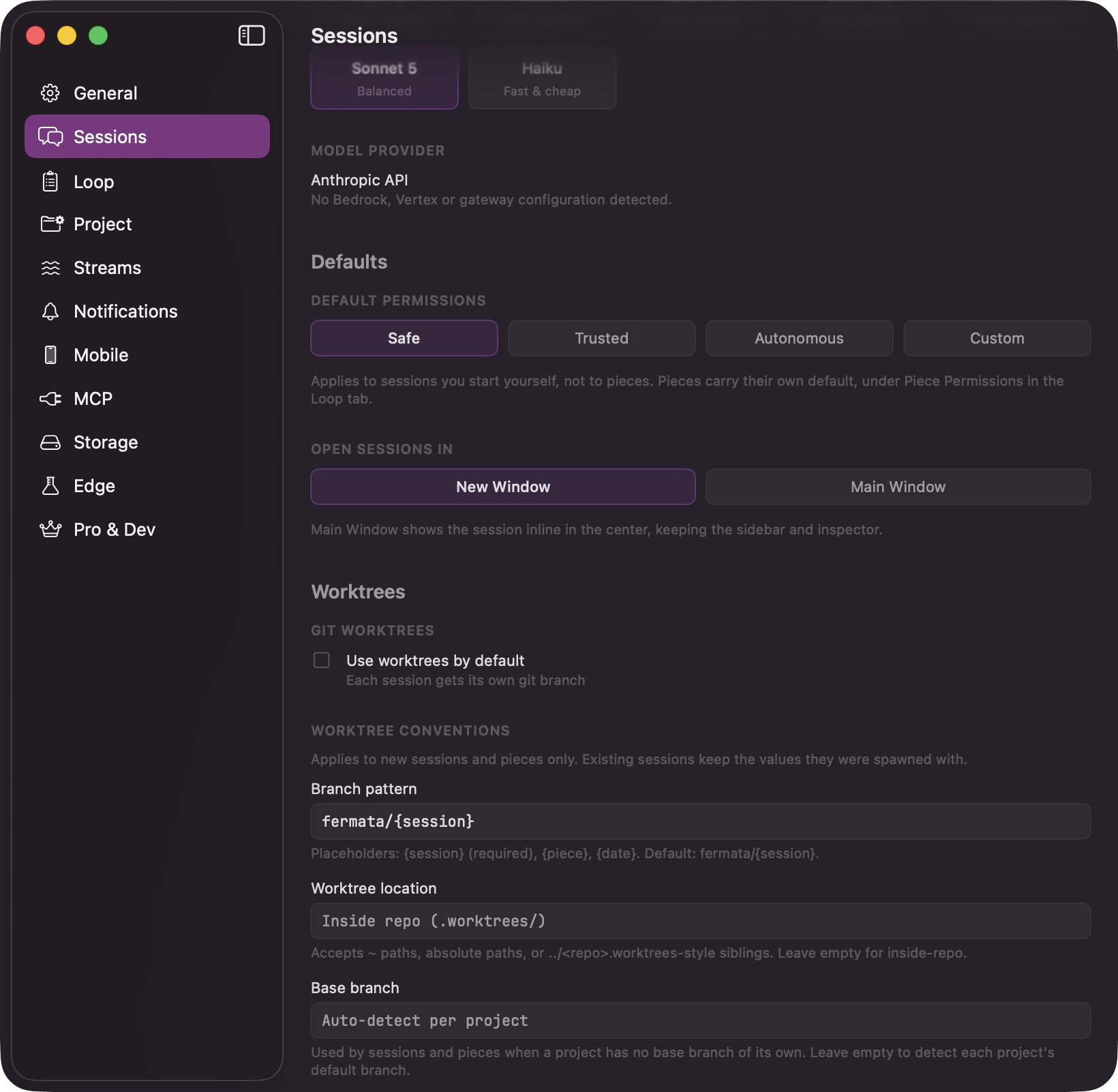
The Sessions pane: the model, the provider card, the permission default, and the worktree conventions shared with pieces
Loop
Defaults for pieces: the model, how hands-off a run is, and how many agents may run at once. Grouped into Model, Execution, Autonomy, Interview, and Lifecycle.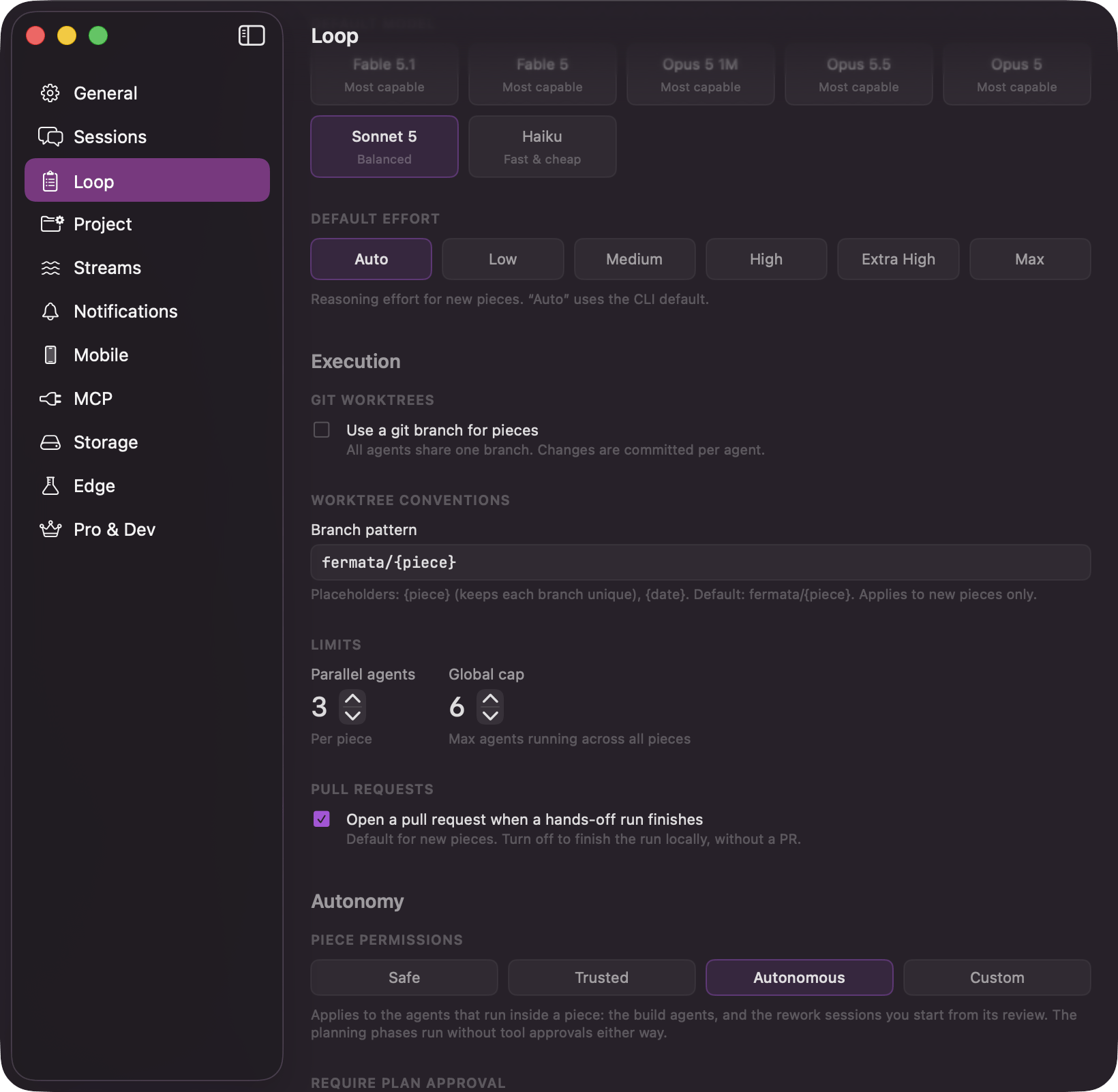
The Loop pane: the piece model, the agent limits, the permission default, the gates, and the passes
Piece Permissions is deliberately not the same control as the Sessions pane’s Default Permissions, and it starts on a looser setting. See how much happens without you for why.
Project
Per-project overrides. Every card inherits the global default until you switch the override on, and the card shows you what it is inheriting. The concurrency ceiling, your account, sync, and app-wide preferences stay global.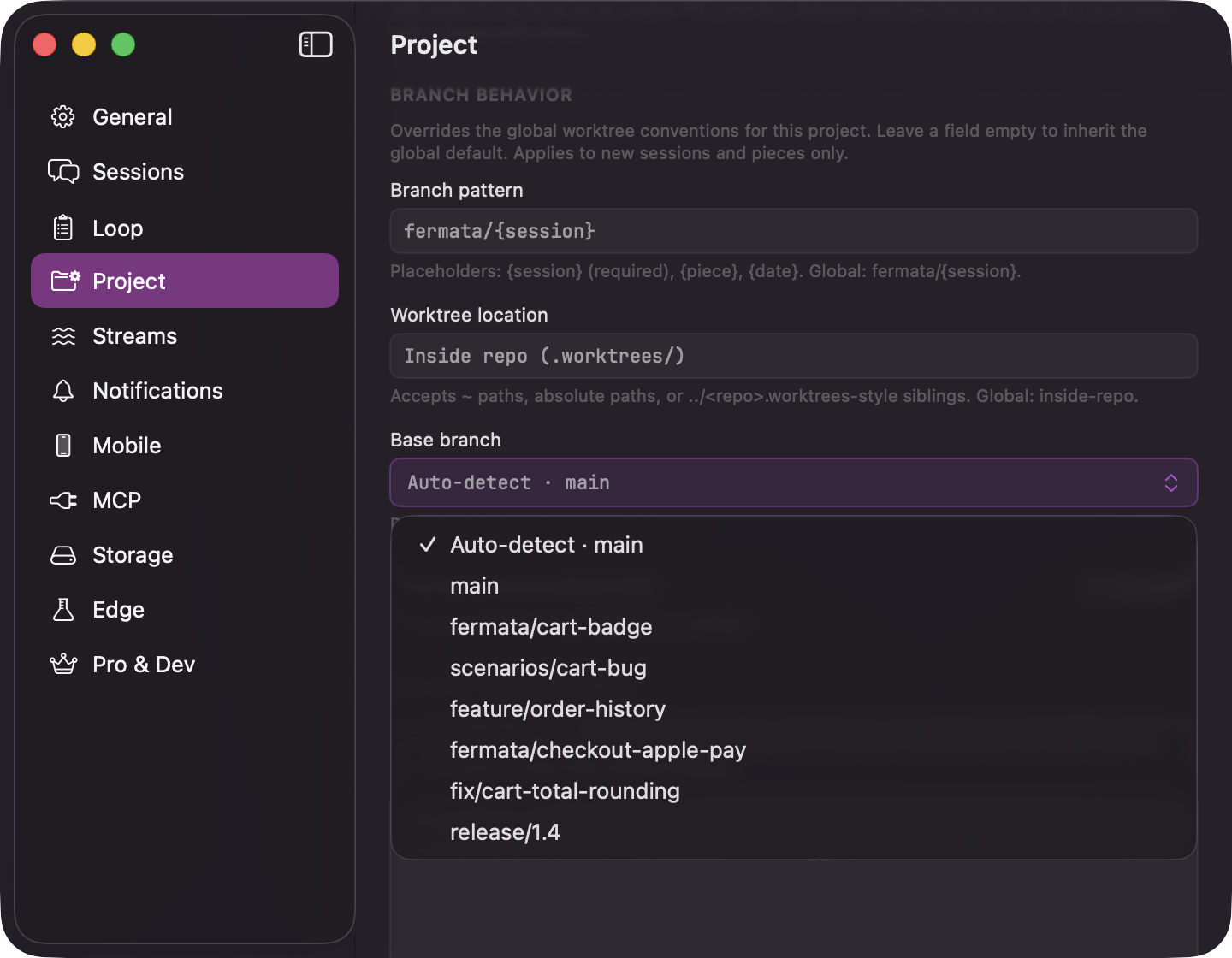
Project Settings → Branch Behavior: the Base branch menu with Auto-detect and the repo's local branches
Streams
Appears only with Edge on and its Loop intake switch on.
gh account or a pasted token. Each connected source is a row naming the kind and the account it reads (“Linear · Acme”, “GitHub · octocat”) with a health line, a Check now button, and Remove. See Starting from an issue for the picker this feeds.
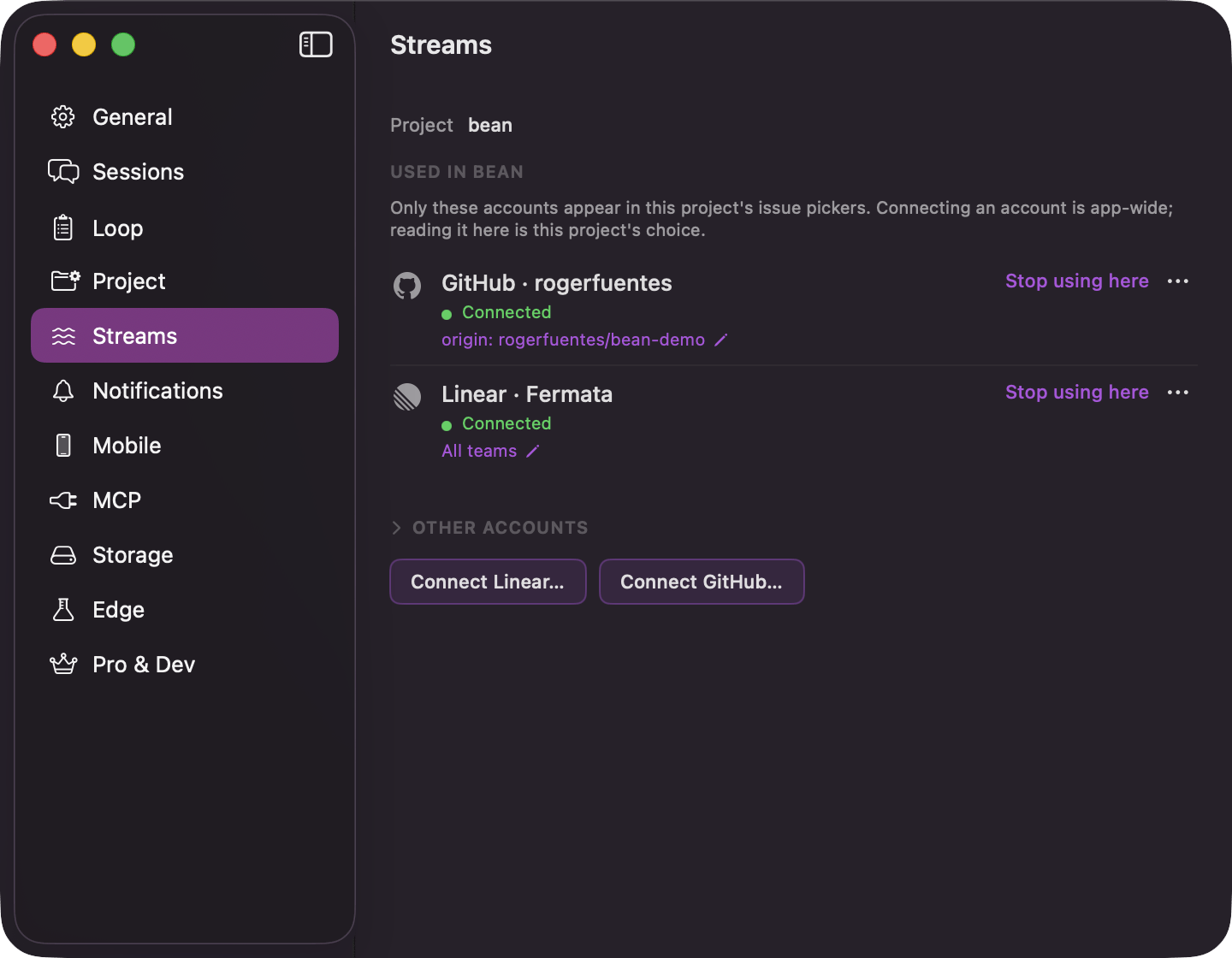
Settings → Streams: the accounts Fermata reads issues from
Notifications
Mobile
Appears once the companion is available to your account.
MCP
Appears only with Edge on and its MCP control plane switch on. Turning either off shuts a running server down.
Turning the server on adds a Preferred Port field, defaulting to 8787: type a port and press Apply. Fermata tries that port first, then the next nine, then whatever the system offers; a port change takes effect at the next start or Retry, never underneath a call already in flight.
Once the server is running, the pane shows the bound host and port, a health readout, and whether Claude Code currently has the server registered. Connection instructions switch between three tabs: One-off (a command for a single session), Shell alias (an alias line for your shell config), and Register (the entry Fermata writes into Claude Code so every
claude session sees it without a flag); each tab carries a Copy Instructions and a Copy Inline Config button.
Below the instructions, Register and Unregister write and remove that Claude Code entry, and Regenerate Token retires the connection token: every client holding the old URL stops working, including a session connected right now, which has to be started again. See Filing work from outside.
Storage
Edge
The channel switch, Enable Edge features, and a “Features” card with one switch per preview feature: Code review, MCP control plane, Web diff viewer, Loop intake, and Cost ceiling. See Edge features.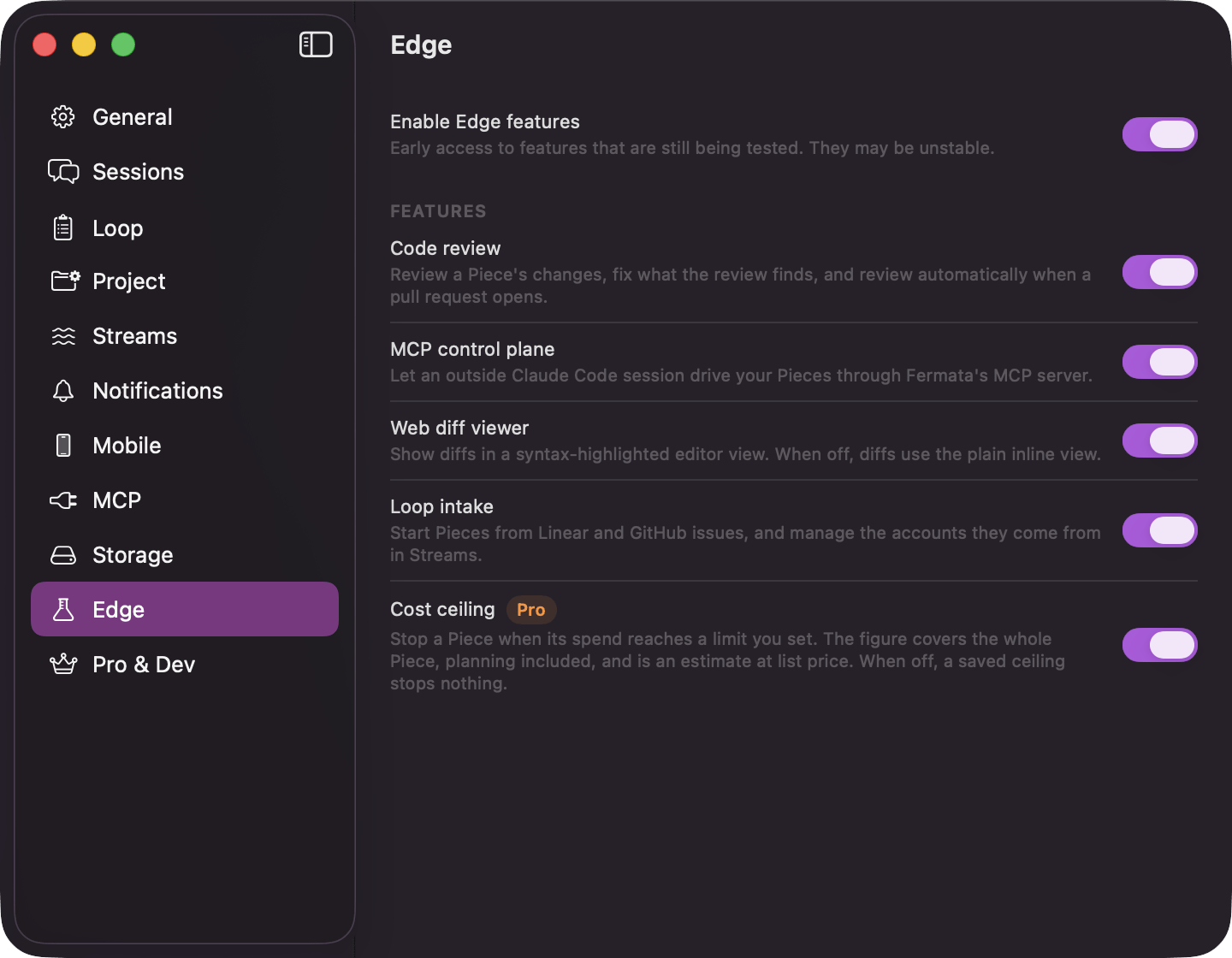
Settings → Edge: the channel switch and one switch per preview feature, Cost ceiling marked Pro
Pro & Dev
“Current Tier” reads “Free” or “Pro”. Free is the whole desktop app, and nothing here is required for normal use. Pro is unlocked by an “Invite Code” during the phone companion’s beta. It turns on the companion and the sync it runs over, the spend insights cards on Analytics, and the cost ceiling behind Edge. See the phone companion. The Edge switch is not here. It has its own pane, described on Edge features.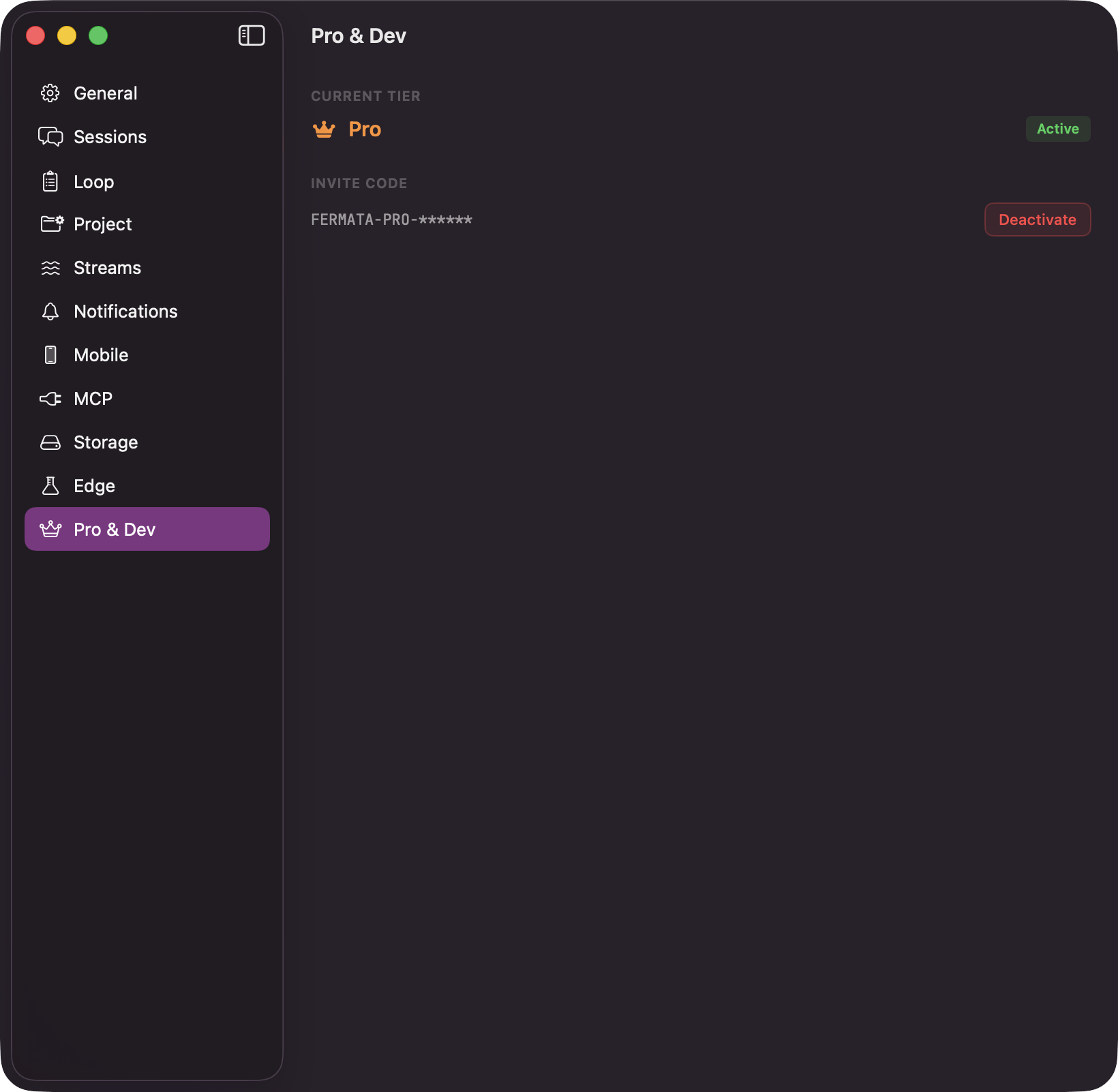
Pro & Dev: the current tier and the invite code