

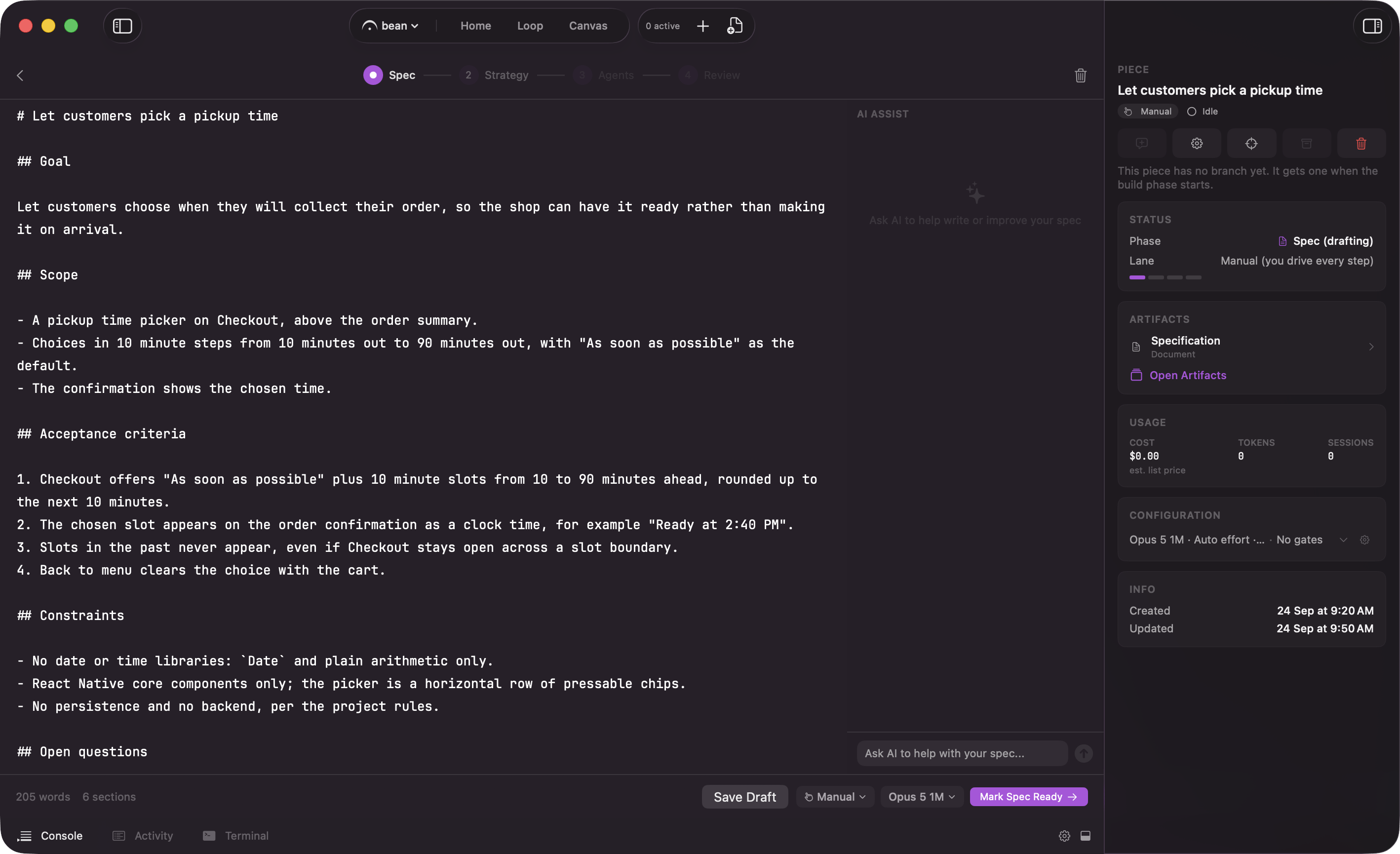
The spec the interview produces, open in the spec editor
Why an interview
A vague spec produces a wandering build. If the model does not know what “done” looks like, the agents guess, and you spend Review untangling work that solved the wrong problem. The interview closes that gap up front. It asks the questions a careful reviewer would ask before the first line of code: what is in scope, what is explicitly out, what the edge cases are, what “done” means. You answer in plain language; the interview shapes those answers into a spec.The interview asks, you answer, and the spec takes shape until you mark it ready
The analysis it leaves behind
That read of your code is not thrown away when the spec is written. The reports the interview’s research agents deliver are saved with the piece asinterview-research.json. When strategy generation starts, its first step structures the spec and those reports into an analysis file, analysis.json, saved next to the spec, and the plan is written only after that returns.
The strategy plans from it. A strategy written with an analysis is labeled “Grounded”; one written without it is labeled “Ungrounded” and plans from the spec text alone. A failed extraction does not stop the run: the plan is written from the spec. Leave a note and Regenerate, and the strategy captures the analysis again before it rewrites. See Strategy.
Import a spec instead
If the spec already exists, click Import a spec or drop a.md file onto the interview. Fermata reads it in, runs it through the same readiness check a drafted spec gets, and tells you to review the draft, refine it by chatting, or mark it ready. Format & validate reformats a draft into the standard spec sections and re-checks it, which is worth a click after you hand-edit an imported file.
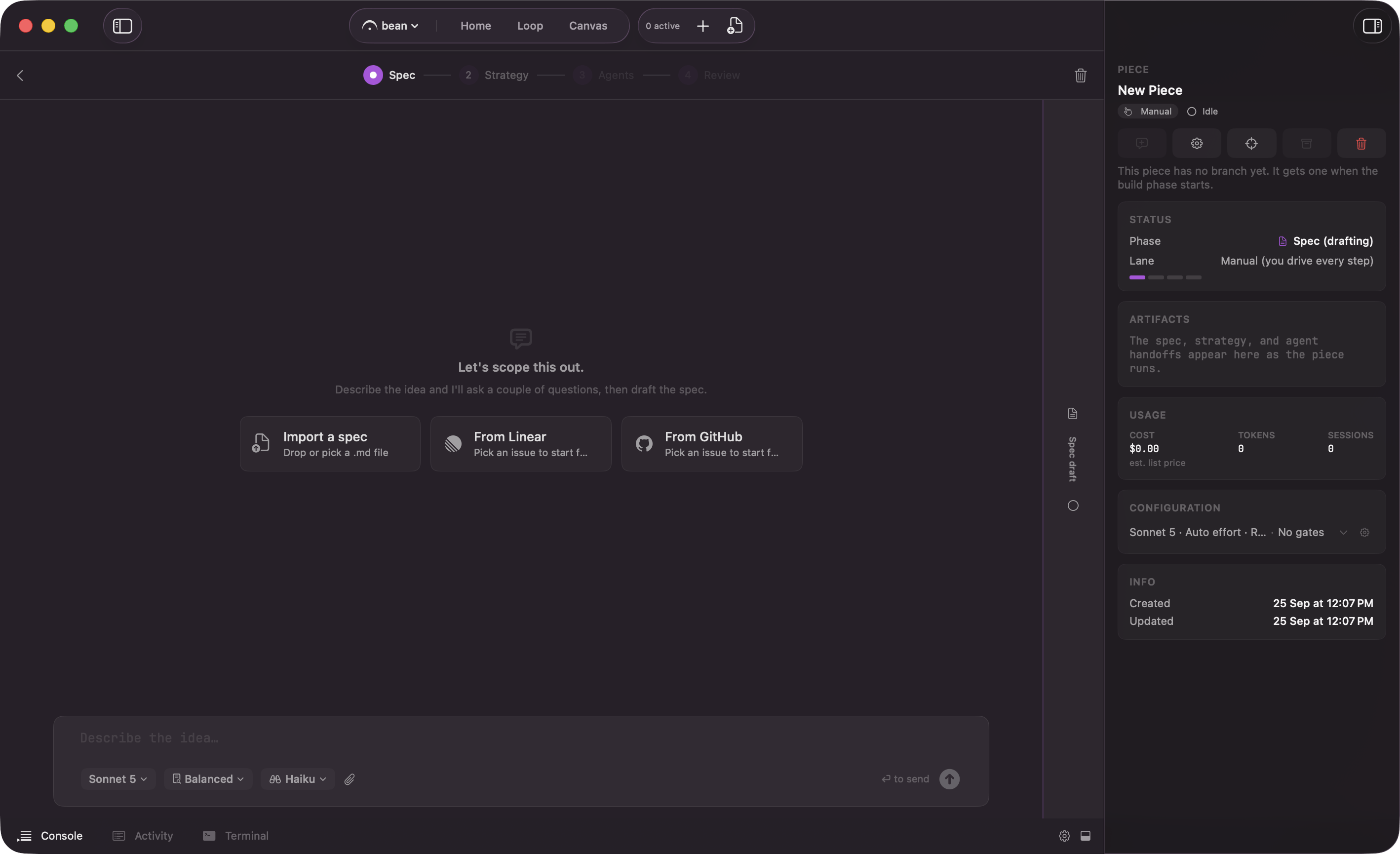
Three tiles into a spec: Import a spec, From Linear, From GitHub
origin is on github.com. Either tile opens the same issue picker the New Piece sheet and the Backlog + use, and a pick feeds the interview instead of the chat opener. See starting from an issue for the picker, the two ways to take an issue, and what an open blocker does.
Evaluate before you commit
Once the draft has the sections a build needs, an Evaluate control appears. It runs an optional pass over the spec and reports back inline, in three parts:- “Strong” lists what the spec already pins down.
- “Worth tightening” lists the gaps.
- “Blocking open questions” lists the things it thinks nobody can build from yet.
Tune the interview
Three controls sit on the composer, so you can set them per interview rather than digging through settings. All three lock once the interview starts, because each is fixed when the interview spawns. Interview depth decides how hard it pushes before it drafts:
Depth changes the questioning only. Repository exploration stays full at every level, so “Quick” is not a shallower read of your code; it is a shorter conversation about it.
Reach for “Thorough” when the work is ambiguous or expensive to get wrong, and “Quick” when you already know what you want and just need it written down. A session promoted from the Canvas starts at “Quick” on purpose, because the exploration already happened.
Model picks which model runs the interview, independently of the models the build phases use.
Explore model picks the model the spec’s Explore subagents run on, separately from the interview session itself. It seeds from the app’s remembered pick, itself starting on a fast, economical tier; changing it here updates that same app-level default, so the next interview’s Explore model starts where you left this one.
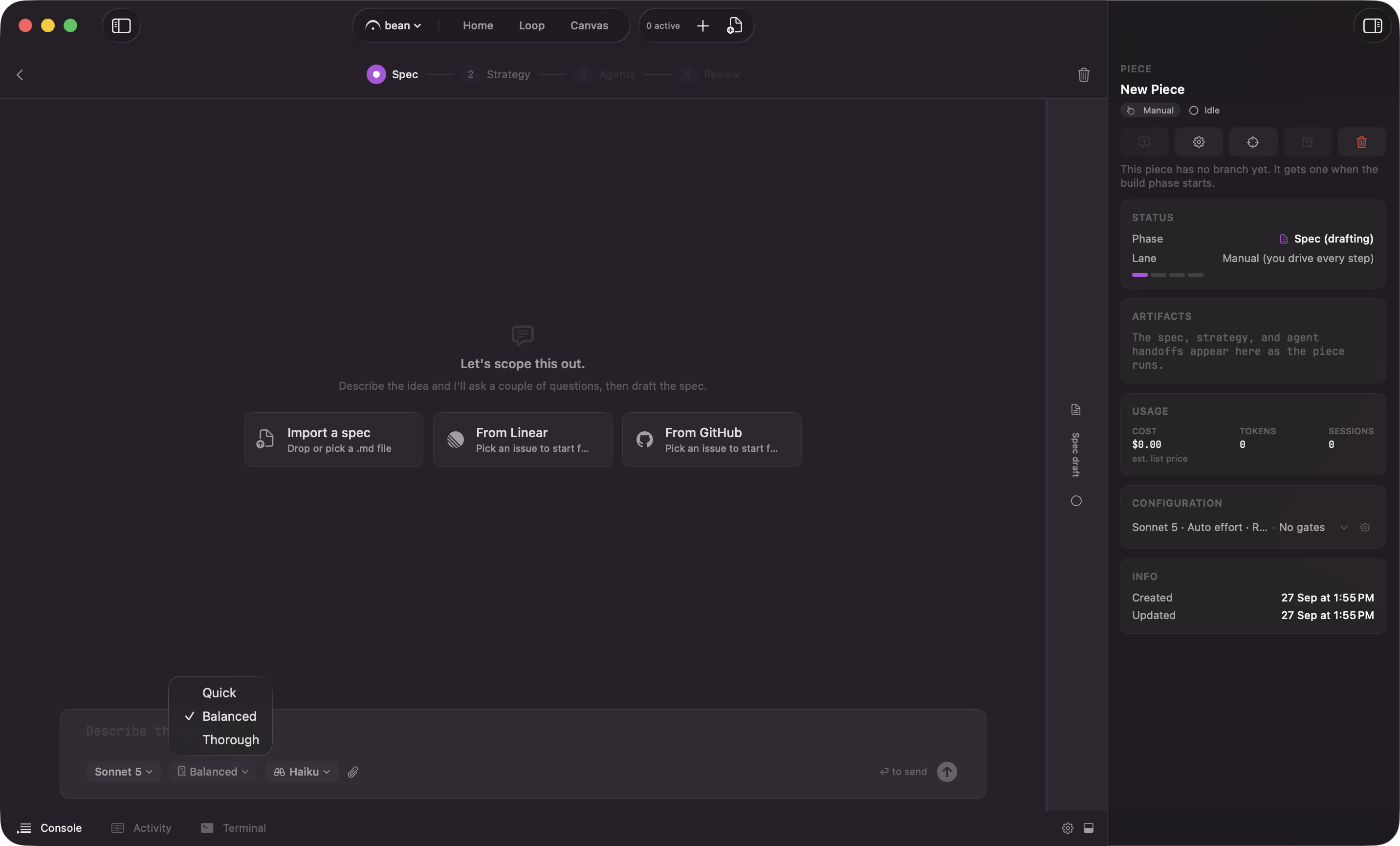
Interview depth, model, and Explore model, set per interview
Mark it ready
The approve control has three parts: a lane chip, a model chip, and the approve button next to them, its verb changing to match the lane you picked. The lane chip picks how far the piece runs on its own after approval; its three choices are covered on lanes. The model chip picks the model for the rest of the run; see models and providers for what it governs and how a Flow Configuration override can still win.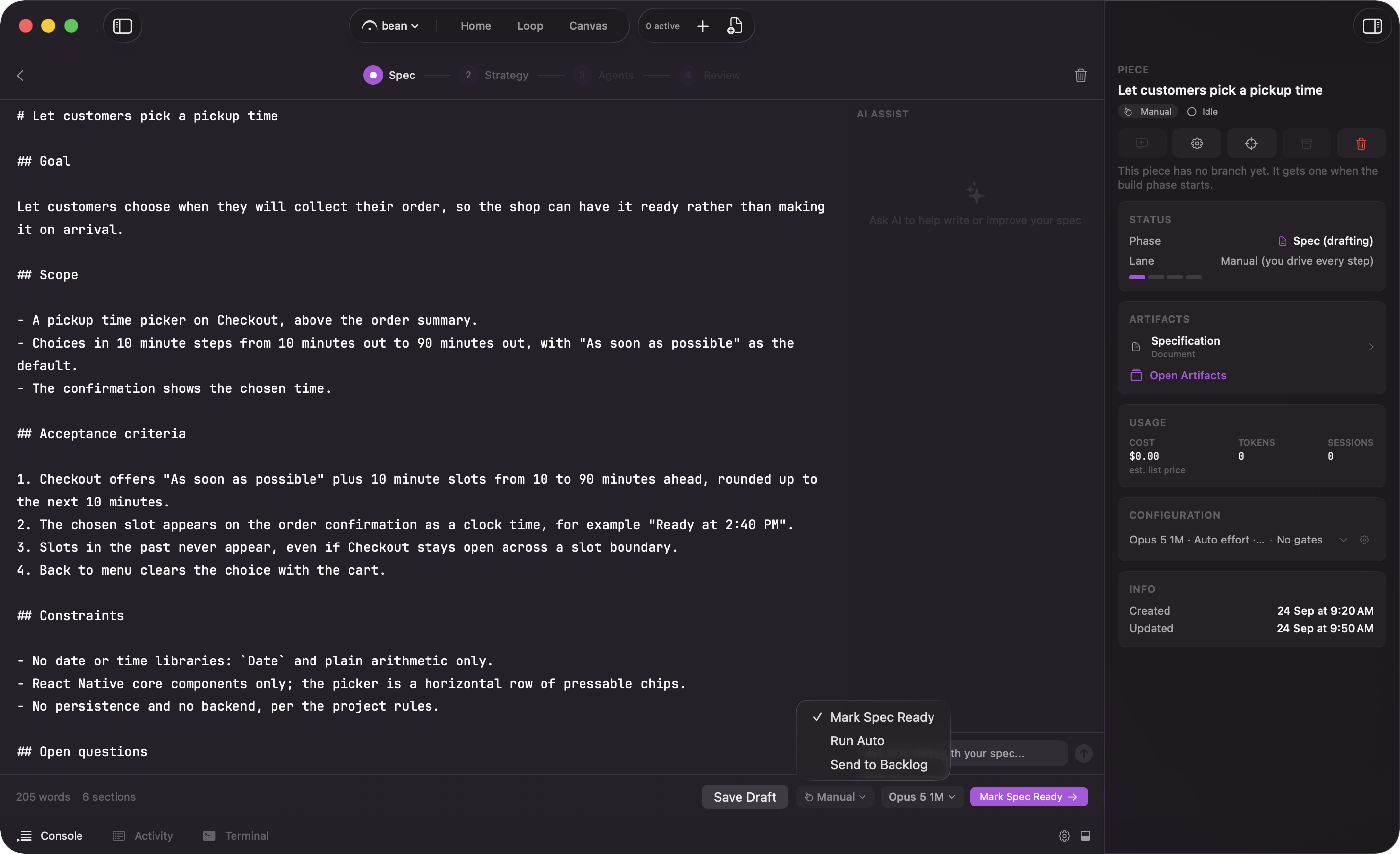
Marking the spec ready: choose the lane the piece runs in