

The MCP server is off until you turn it on in Settings → MCP. The pane is there on every channel.
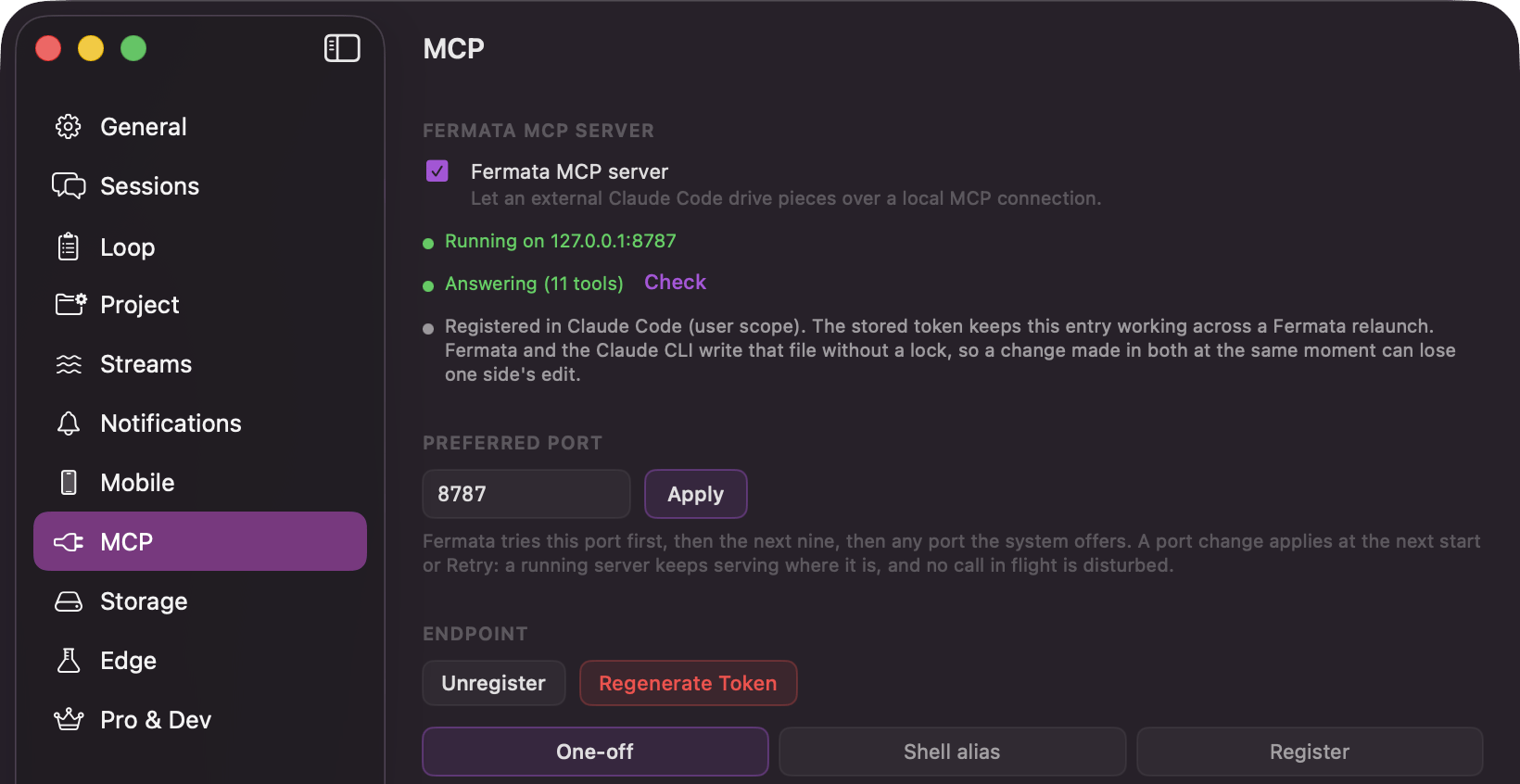
Settings → MCP: the server switch, its status and health, and the registration row
Turn the server on
Open Settings with ⌘, and go to the MCP pane. The “Server” card leads with MCP server, captioned “Let an outside Claude Code drive pieces locally”. Switch it on. The rows under it tell you where things stand:
“Answering” is the quickest way to tell a broken connection from a quiet one. The number is how many tools the server serves.
Fermata remembers the switch. The next time it launches with the switch on, the server starts on its own.
The port
The “Port” card holds Preferred port, 8787 unless you change it. Type a number between 1024 and 49151 and press Apply; anything else is refused inline with the reason, and nothing is saved. The new port applies at the next start or Retry, so a call already in flight is never cut off. Fermata tries the preferred port first, then the next nine, then any port the system offers. When it lands somewhere else, a “Bound port” row says so: “Not the preferred port 8787. Retry in about 30 seconds.” Either another app holds the port, or connections Fermata just closed there are still winding down. A client registered on the preferred port cannot reach the moved server, so press Retry once it clears.Register with Claude Code
Once the server is running, an “Endpoint” card appears. Its “Claude Code registration” row carries Register. Register writes one entry, namedfermata, into ~/.claude.json, the user-scope config file the Claude Code CLI reads. From then on every claude session that reads that file sees Fermata, in any directory, with no extra flag. Nothing else in the file changes. If the file already has a fermata entry pointing somewhere else, Fermata asks first with “Replace the Fermata entry in Claude Code?” and shows where the old one points; Cancel leaves the file exactly as it was. Registration writes that one file only, so a project whose sessions use their own Claude config directory (Settings → Claude Code → Claude config directory) does not see the entry; connect a terminal session for that account with the One-off command below.
Unregister takes the entry back out and leaves every other server in the file alone.
The token is stored in your Keychain and the port is pinned, so the registered URL keeps working across a Fermata relaunch. Two things change it: a port move, and regenerating the token.
Other clients and one-off sessions
The “Connect a client” card has three methods under “Method”, each with text you can copy straight into a terminal:- One-off starts a single connected session from any directory:
claude --mcp-configpointed at a connection file Fermata keeps up to date. The file is re-read on every run, so this command survives relaunches, port moves, and token changes. - Shell alias is the same command as a
claude-fermataalias for your~/.zshrc. - Register is the
claude mcp add-json fermata … -s usercommand that does what the Register button does, and the matchingclaude mcp remove fermata.
mcpServers object with one fermata entry of type http, for any MCP client that takes a static config.
The URL inside carries the token: http://127.0.0.1:<port>/mcp/<token>. Treat it like a password. Anyone on your Mac who has it can drive your pieces.
Retire the token
Regenerate Token, in the “Endpoint” card, mints a new token after you confirm “Regenerate the MCP token?”. Every client holding the old URL stops working, and aclaude session connected right now is cut off and has to be started again. Fermata rewrites its own registration in ~/.claude.json for you, so registered sessions keep working once restarted. The server does not rebind and the port does not change.
If the Keychain refuses the token, an “Auth token” row reads “This launch only”: the URL changes at the next relaunch, and anything you register has to be registered again.
After Fermata restarts
A Claude Code session that was connected when Fermata quit loses the server; the tools stop resolving. Once Fermata is running again, run/mcp in that session to reconnect. The URL is the same, so nothing needs re-registering.
If the tools still do not resolve, check Settings → MCP. “Health” should read “Answering”, and “Claude Code” should read “Registered”. A “Bound port” row means the server moved; press Retry once the port clears.