

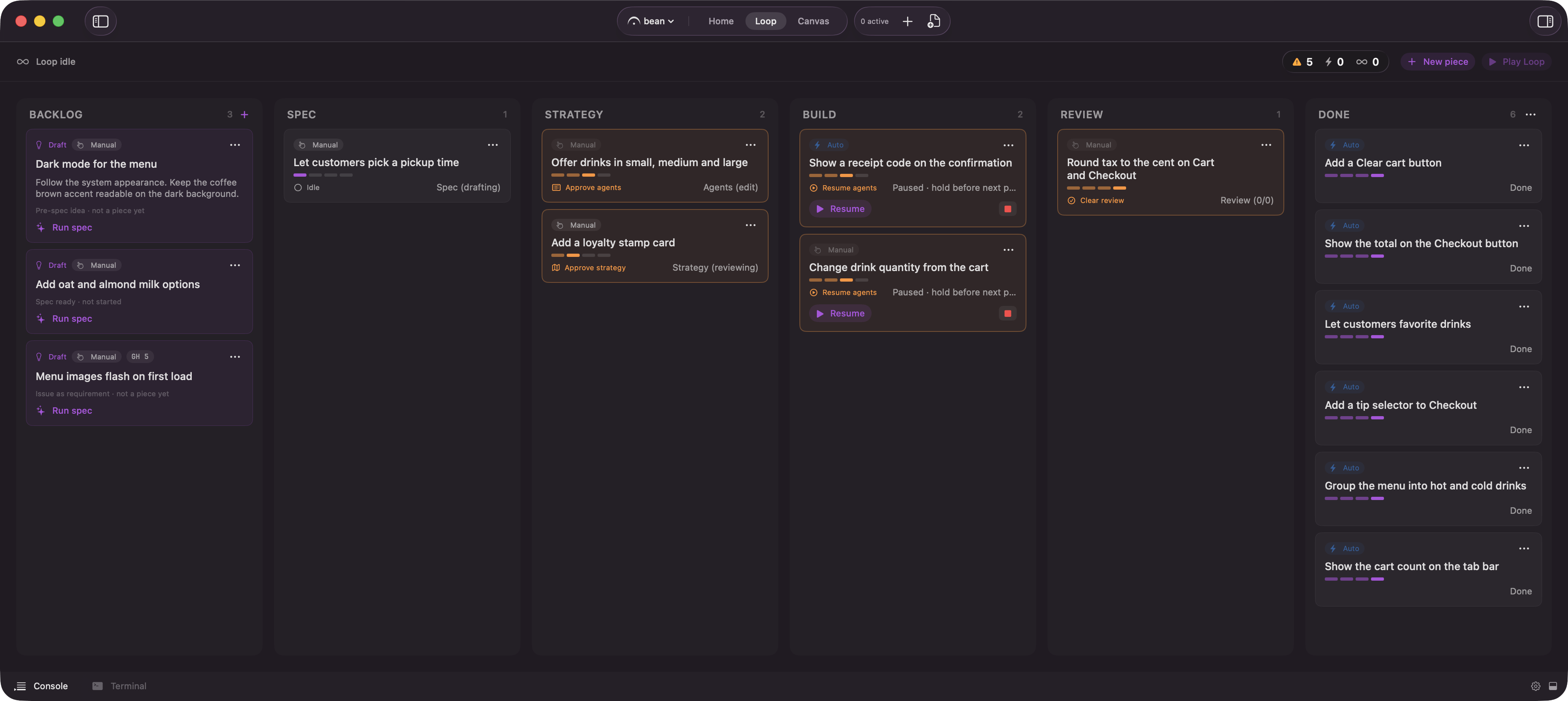
The Loop board: Backlog, Spec, Strategy, Build, Review, Done, with the cards that need you on top
The six columns
Strategy and Build are deliberately separate rather than one “in progress” bucket, so a glance tells you whether the factory is thinking or building.
Each column header shows its title and a count. Backlog alone carries a
+ button, tooltipped “New draft”. Done alone carries an overflow menu, covered below.
In Review and Done the lane badge turns read-only. There is nothing left to advance: Done is terminal, and Review is the human checkpoint by definition.
What floats to the top
Inside Spec, Strategy, Build, and Review, cards do not sort by recency alone. A card that needs you floats above every card that does not: a gate, an agent waiting on an answer, a failed spec interview, a run halted by its cost ceiling, and a clean run ready to confirm all sit at the top of their column. A hard-stopped card sits next, below the cards needing you and above everything else. Everything left, “Advancing”, “Held”, “Armed”, “Working”, and “Idle”, sorts by most recently updated, newest first. Backlog and Done never float. Backlog holds only drafts, which carry no live state to rank. Done hides its chip because a finished card already reads as finished, so ranking it by a state you cannot see would only confuse.Reading a card’s chip
Every piece card carries a chip naming what it is doing right now. This is separate from its lane badge (Manual, Auto, Loop), which says how far it is allowed to run on its own: a Loop-lane card can read “Advancing”, “Held”, or “Idle” depending on whether the Loop is playing.Play and Pause
One button runs everything enrolled in the Loop. It reads Play Loop when the Loop is paused and Pause Loop when it is playing, and its tooltip changes with it:- Nothing enrolled: the tooltip says nothing is in the Loop yet, and to set a piece or a Backlog draft to Loop to play it. The button is disabled.
- Paused: “Resume autonomous runs for everything in the Loop.”
- Playing: the tooltip says it pauses autonomous runs, and that running agents finish their current turn.
- “needs you”, the decisions parked on you across the board, reading “need you” for more than one. See gates.
- “advancing”, the pieces moving on their own right now.
- “in the Loop”, everything Play would run: enrolled pieces plus the Loop-lane drafts still sitting in Backlog.
Drafts: capture now, spec later
Backlog holds drafts: an idea with a title and a few lines of seed text, captured before it becomes a piece. When something occurs to you mid-run, park it as a draft instead of derailing what you are doing or losing the thought. A draft picked from an issue through Loop intake (Edge) shows only the issue’s key chip on the card; open it to read what it actually carries.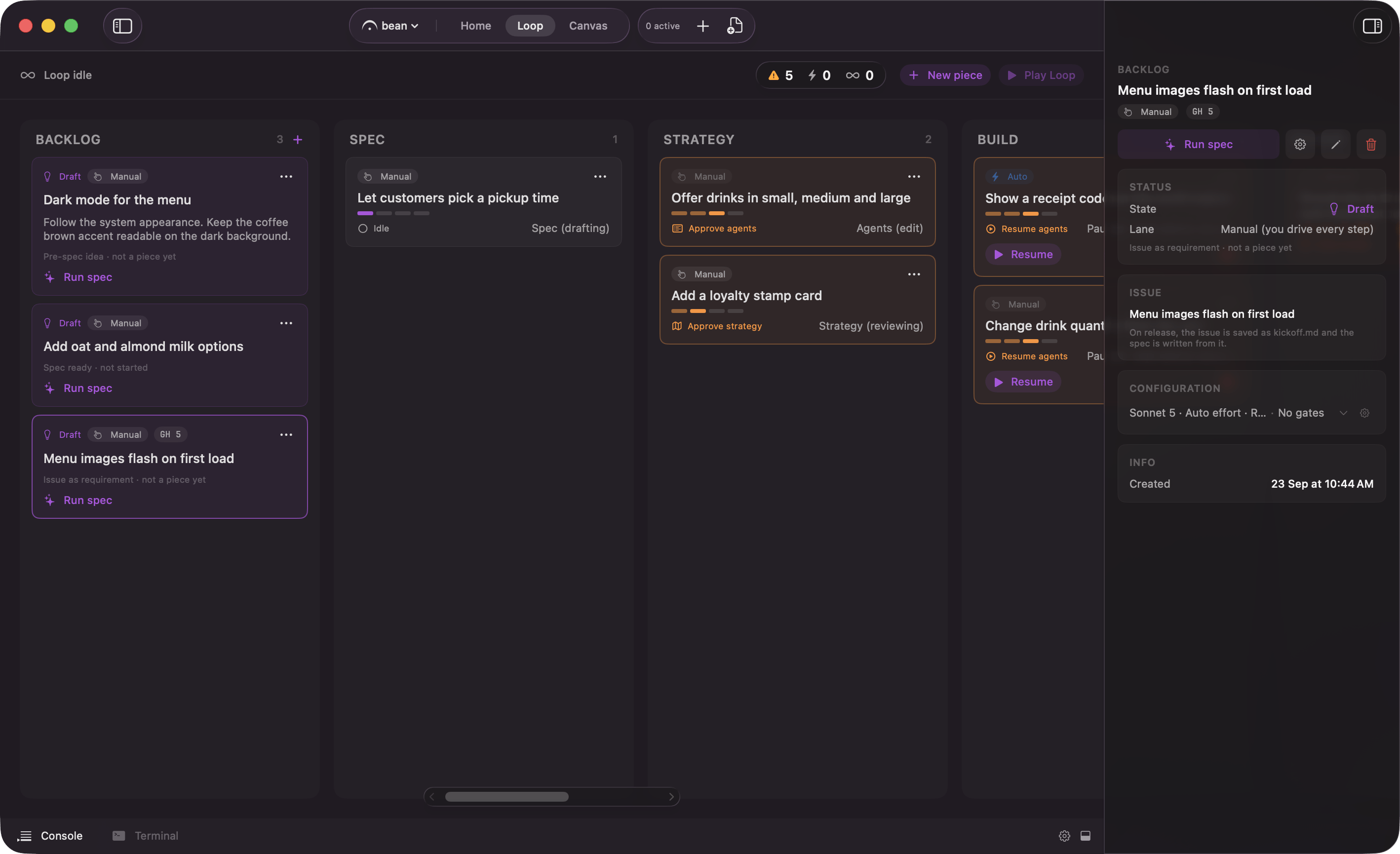
An issue parked in Backlog: the key chip is all the card shows
The primary button on the card depends on the draft’s lane. An Auto draft reads Play: “Start this Auto draft. It writes its spec and runs on its own, no second step.” Manual and Loop drafts read Run spec: “Turn this idea into a real piece and open the spec interview.” The overflow menu adds Edit, a lane picker, and Delete.
Releasing a draft creates a real piece that keeps the draft’s identity, applies its lane and model, and either injects the carried spec or seeds the interview with the seed text.
New drafts default to the Loop lane, so a stack of them can spec themselves and run on one Play. That default is the one case where a draft does not sit still: file a Loop-lane draft while the Loop is already playing and it starts immediately, because Play is that lane’s standing release. While the Loop is paused, or on the Manual and Auto lanes, the draft waits for you.
The New Piece sheet that creates a draft carries a model chip beside the lane control, for the spec interview, fixed once the interview starts. See models. With Loop intake on (Edge), two more buttons, Start from Linear issue and Start from GitHub issue, sit above the title field; picking one fills the sheet from that issue instead of starting empty.
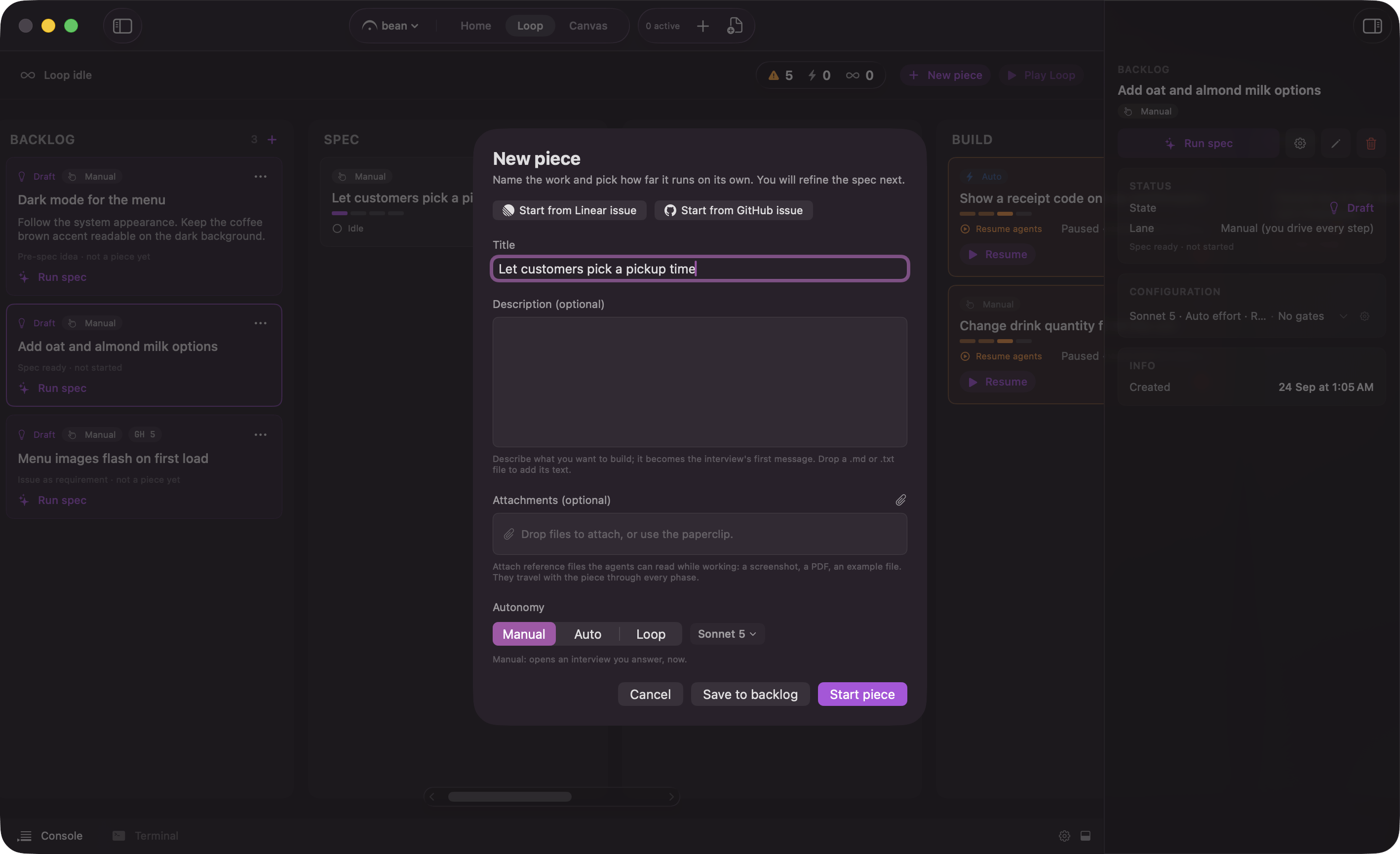
The New Piece sheet: the lane, the interview model, and where the piece lands
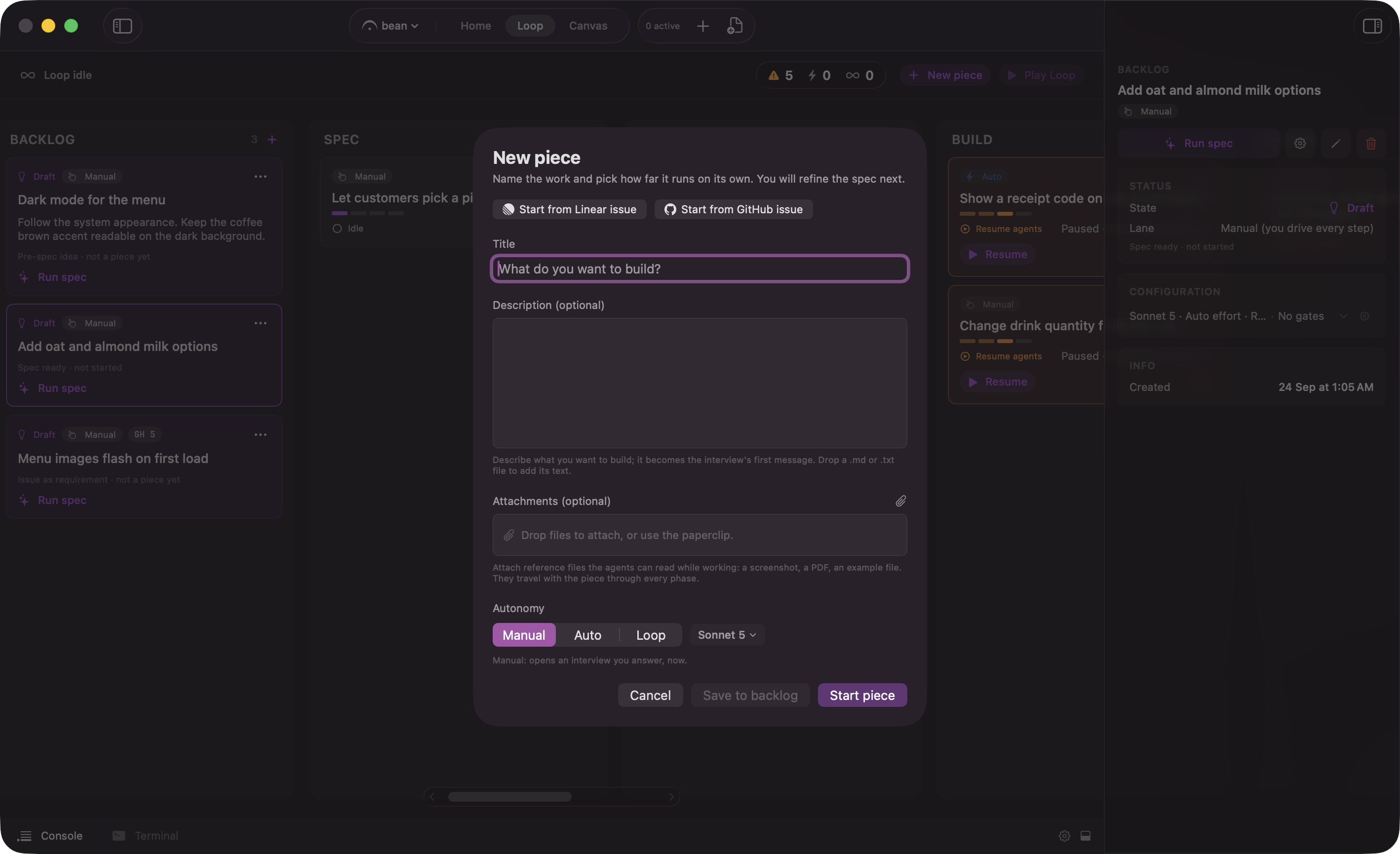
The New Piece sheet with Edge on: Start from Linear issue and Start from GitHub issue
The draft inspector
Click a draft card to open its inspector on the right, headed “BACKLOG”. It carries the “Draft” badge, the “Lane” row, and a card for the seed text or the picked issue. A “Configuration” card follows: a collapsed one-line summary of what the promoted piece will run under, expanding to a row per knob. The rows show the resolved defaults with the draft’s own overrides layered on, which is exactly what promoting it applies. The action bar leads with the card’s own start button (Play or Run spec, matching the card), then three more: Configure Draft opens the same configuration sheet the Configuration card’s gear does, Edit Draft opens the edit sheet below, and Delete Draft removes the draft and anything staged with it.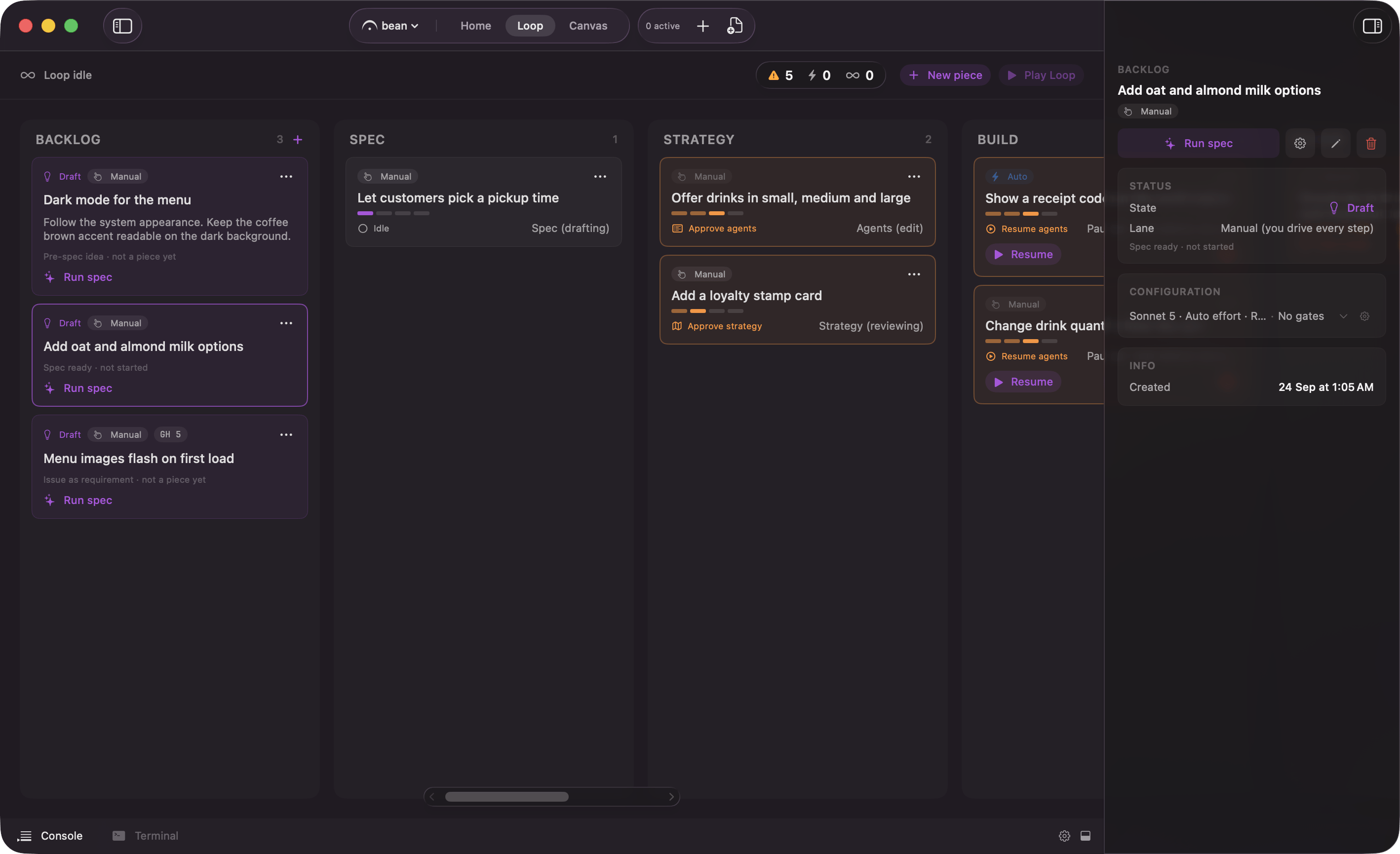
Click a draft to see and change what it will run with before you release it
Editing a draft that already carries a spec
A draft picked from an issue with “Use as requirement”, or otherwise carrying a written spec, opens a fuller edit sheet from Edit Draft or the card’s overflow Edit. Beside the title, it shows the spec itself in a read-only, scrollable preview, with See more opening the whole document in its own window. An On release menu decides what happens to that spec when the draft is promoted:
A caption under the menu states what the current pick will actually do, computed against this specific spec rather than the option’s general description.
Below it, a Guidance (optional) box stays editable no matter which option is picked. It only reaches the run when an authoring pass fires: there, it is appended to the spec as additional guidance for that pass. Under any other option, the note under the box says the field is not used, but nothing stops you from writing it in before you switch modes.
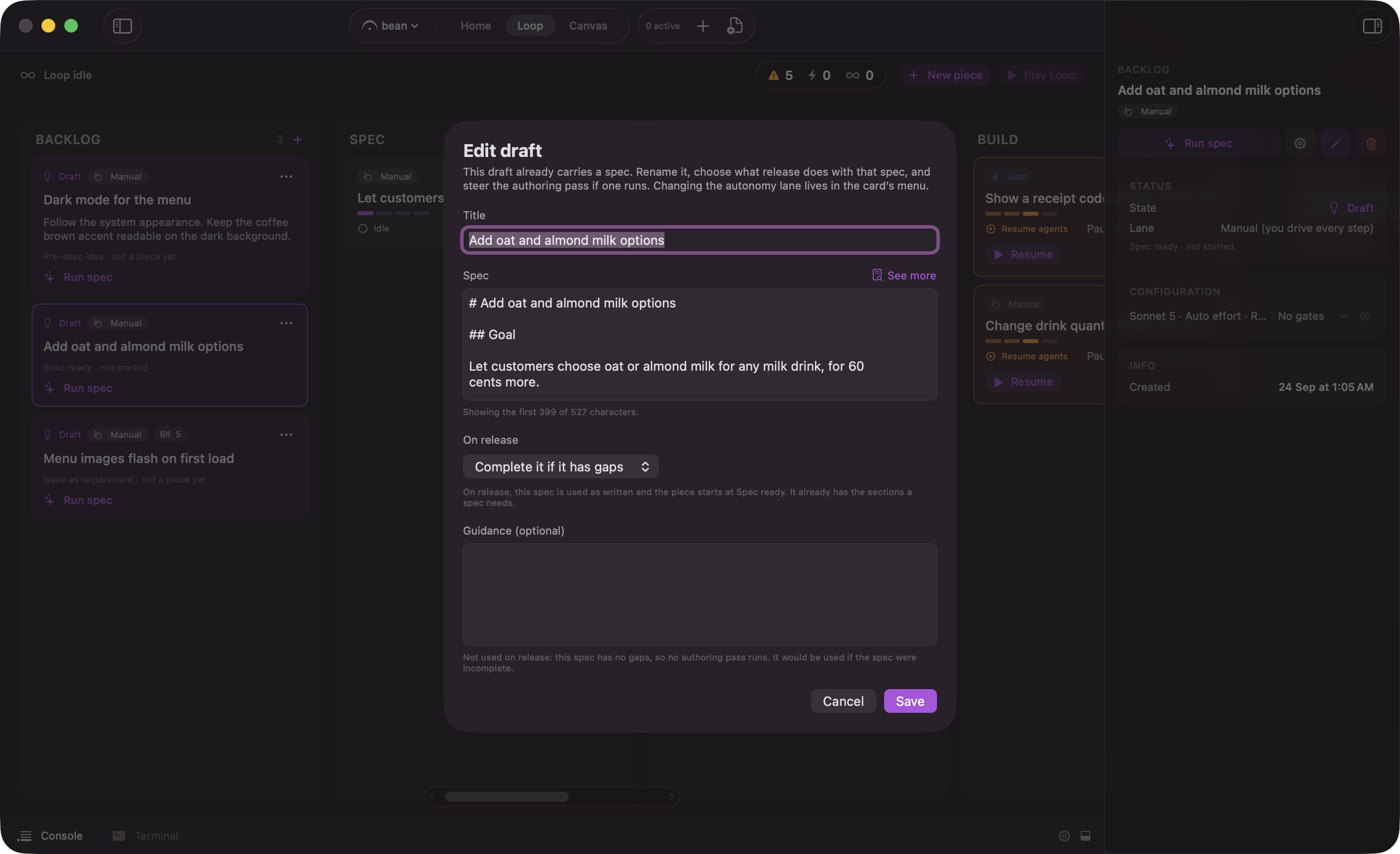
A draft that already carries a spec: choose what release does with it
Per-card controls
Play on a piece card is a different control from the board’s Play. It releases one Auto piece: “Release this Auto piece to run on its own. Until you press play it stays armed and parked.” Approving a spec with Run Auto, or starting a piece on Auto from the New Piece sheet, already does that release, so this button is for a card you switched to Auto from its badge, or an Auto piece you hard-stopped. Hover a running card and two controls appear:- Pause after this phase, which lets the current phase finish and then holds.
- Hard-stop now (keeps the worktree), which stops immediately and leaves the branch and worktree intact so nothing is lost.
Clearing the Done column
The Done column’s overflow menu carries a batch archive, labeled with the exact count it will take: Archive 3 Finished Pieces. It confirms first, and it tells you up front if it is holding any cards back, so a column that still has cards in it after the sweep does not read as a failed action. Archived pieces are hidden. The hub bar’s Show archived (n) reveals them and Hide archived puts them away again.Running the board while you are away
A factory on one Mac stops when you close the lid, and that is true here. What Fermata prevents is the quieter failure, a hands-off run dying to idle sleep because you stepped away. Turn on Keep Mac Awake in General settings, described in the settings reference. It runs while your Mac is on, on your own machine, not in a datacenter. Quitting is a harder stop. Closing a project window that has live work asks you to confirm first, then stops that project’s sessions and pauses its in-flight pieces. Quitting the app stops every agent everywhere, with no prompt. Neither one touches a worktree. Nothing resumes by itself on relaunch. The piece comes back at the phase it reached, its stopped agents read done, and its worktree and branch are as they were. Pick it up with Resume All on the piece’s Agents phase, or Re-queue on its card. A piece parked at a gate, and a Backlog draft, come back untouched.When the board stops for you
A Loop run stops in three situations, and all three surface on Home as well as here:- A gate you switched on. The piece parks in its column until you answer. See gates.
- A tool approval. Rare on the defaults, since a piece’s agents run Autonomous inside their own worktree. See permission profiles and approvals.
- A failure. The piece stops rather than plowing on, and the board shows you where.